D415: there are no connected devices
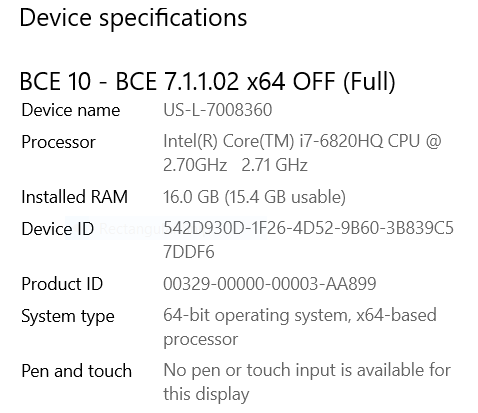
My device:
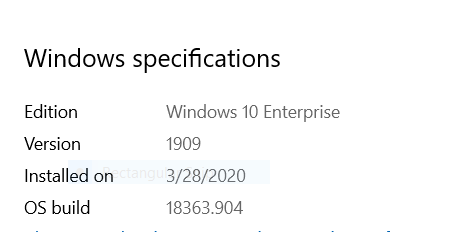
My OS:
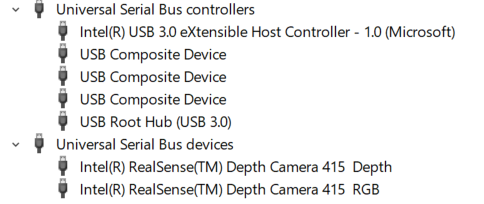
From my Device Manager:
From FW Update Manger:
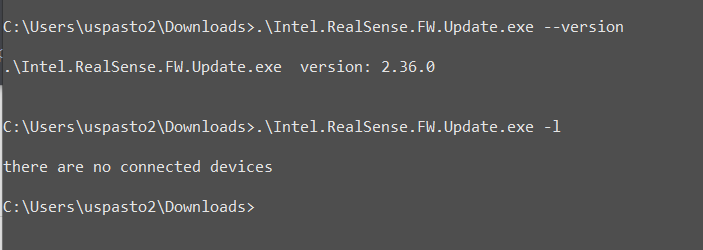
Why cannot the update manager see the D415 camera?
Tried all four USB ports on the Lenovo ThinkPad computer.
The RealSense Viewer does not see the camera either!
PLEASE HELP!
Thanks,
Pavel
-
I am guessing that you downloaded the Intel.RealSense.FW.Update.exe file from the Assets file list on the RealSense SDK Releases page?
https://github.com/IntelRealSense/librealsense/releases/tag/v2.36.0
If that is the case, have you downloaded and installed the full 791 mb RealSense SDK using the Intel.RealSense.SDK-WIN10-2.36.0.2034.exe file in that Assets list please?
-
Hello Marty,
Yes, I downloaded and installed the full 791 mb RealSense SDK using the Intel.RealSense.SDK-WIN10-2.36.0.2034.exe file from Assets.
I get the same results:
- Windows Device Manager sees the D415 Camera--see left side of the image
- RealSense Viewer on the right does NOT see the camera :-(
Any other ideas?
Thanks,
Pavel
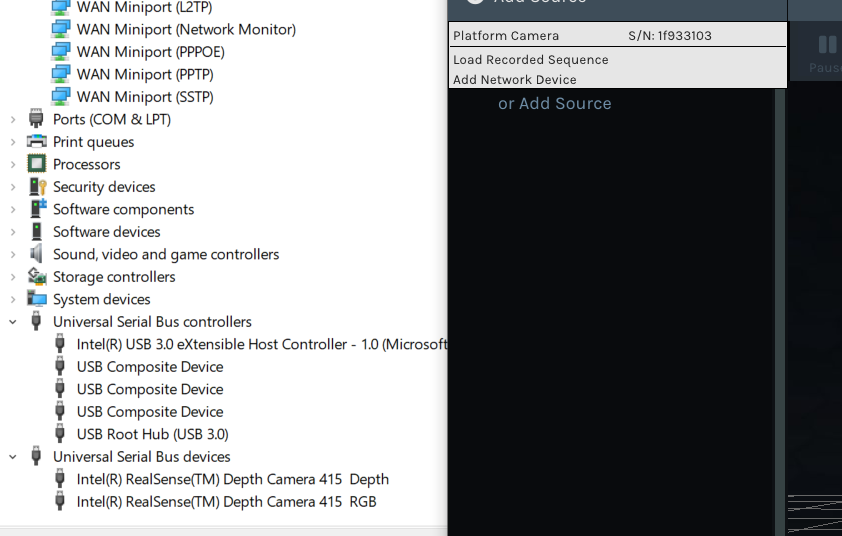
-
The actual camera drivers should be under the Camera category of the Device Manager if they have been installed correctly. Can you check to see whether they are there please?
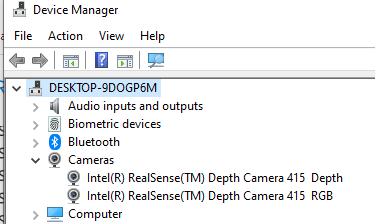
Having said that, I do not have the two drivers under the USB device section like your system has, and Windows is known for sometimes placing the camera drivers in different categories depending on the particular PC. So it is not necessarily a sign of malfunction if you do not have them under Cameras.
It is worth checking whether Windows has set the camera privacy settings so that the camera cannot be accessed Allow access to the camera on this device should be set to On, and allow apps to access your camera should also be set to On.
Instructions for checking the privacy settings are in the link below:
https://github.com/IntelRealSense/librealsense/issues/3381#issuecomment-503424789
-
Marty,
- As you can see from my Device Manager above: The 415 camera appear ONLY under USB devices. I checked: they do NOT appear under Cameras.
- When I go to Windows Settings, I do not get the option "Allow access to the camera on this device" and I do not get the option "allow apps to access your camera". All I get is:
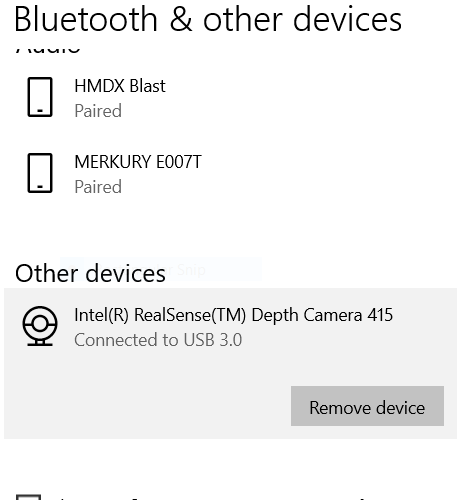
Marty, just want to say that I appreciate your time and effort.
I seem to be stuck. Any other ideas?
Regards,
Pavel
- As you can see from my Device Manager above: The 415 camera appear ONLY under USB devices. I checked: they do NOT appear under Cameras.
-
You are very welcome. :)
It is rarely a good sign when a device ends up under Other Devices or some such other general category though, as it can indicate a problem with the installed drivers.
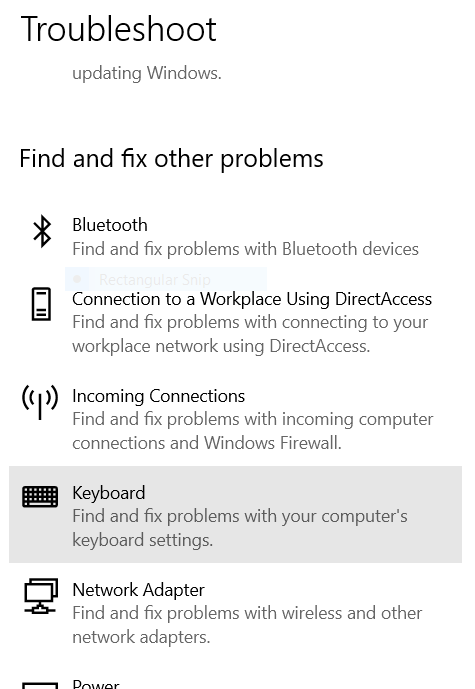
You may be able to correct such problems using the Windows Troubleshooter tool that scans for hardware problems and tries to auto-correct them.
-
Apparently Microsoft hid the Hardware and Devices part of the troubleshooter. To access it now, you have to open the Command Prompt interface and copy and paste the line below into the Command Prompt window.
msdt.exe -id DeviceDiagnostic
Then the option appears.
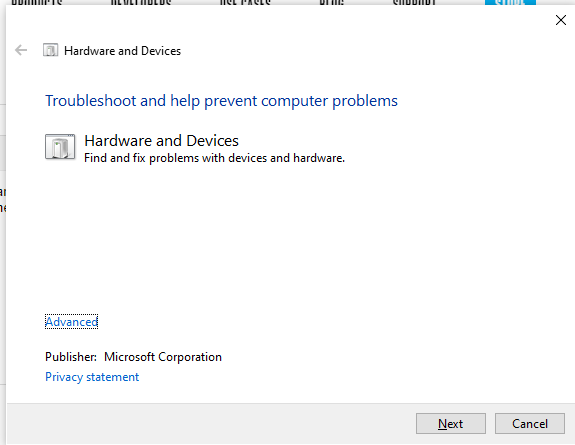
You can find the Command Prompt window by typing 'command' into the search box at the bottom of the Windows screen.
If the above does not work, the next fix you could try is to go to each of the two drivers in Device Manager, right-click on them and select Uninstall. When both drivers are removed, unplug the camera, wait a couple of seconds and plug the camera back in. That should hopefully auto-reinstall the drivers over your internet connection.
-
Hi Marty,
Your last advice fixed my problem:
"the next fix you could try is to go to each of the two drivers in Device Manager, right-click on them and select Uninstall. When both drivers are removed, unplug the camera, wait a couple of seconds and plug the camera back in. That should hopefully auto-reinstall the drivers over your internet connection."
Thanks for your help. 5 stars !!!
-Pavel
-
Hi Marty,
I've been a software developer in the Silicon Valley for over 30 years.
I've always shied away from contacting customer support from any company. My impression has always been that support engineers never solved any of my problems and they always new less that I did.
I want to say that you are the 1st exception to my experiences. Very knowledgeable, and your suggestions were right on the spot. Solved my problem.
I wish I could say these words to your boss. If you can, please forward them to him or her.
Best regards,
Pavel
Please sign in to leave a comment.
Comments
11 comments