[D455] Calibration
Hi,
1. Do you have any videos about calibration for D455?
I want to know how to do it step by step and see the results before and after calibrating but I can not find it.
2. I have a D455, but how do I know if all setup is good or not? Do you have a guide about setup a camera for measurement?
3. For my case, I need to measure x, y, and z distances from Point A to Point B, I use IntelRealsense Viewer - 3D mode and check the value at point A and point B, the values change about 7mm, sometimes 10mm. Do you have any guides to change the setup to decrease these changes?
Thanks
-
Hi Nguyenduyduc14 Thanks very much for your questions.
1. The RealSense SDK has a set of self calibration tools for depth image quality (On-Chip), depth accuracy (Tare) and focal length (Focal Length) that can be found by left-clicking on the More option near the top of the RealSense Viewer tool's options side-panel.
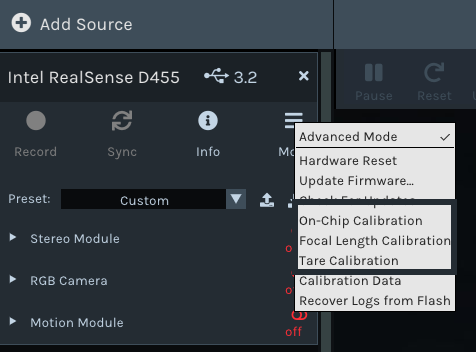
After a calibration is completed, a health check score is provided by the tool, with the choice to save the calibration to the camera hardware or dismiss it and repeat the calibration to achieve a better score.
A white-paper guide document for these calibration tools can be found at the link below.
https://dev.intelrealsense.com/docs/self-calibration-for-depth-cameras
The official RealSense channel on YouTube also has a short video about On-Chip calibration.
https://www.youtube.com/watch?v=pcoYc4YPVMY
2. Intel provide a range of guides for RealSense 400 Series cameras at the white-paper index page.
https://dev.intelrealsense.com/docs/whitepapers
An excellent guide to begin with when aiming to enhance your depth setup is Tuning Depth Cameras for Best Performance, followed by Camera Depth Testing Methodology.
https://dev.intelrealsense.com/docs/tuning-depth-cameras-for-best-performance
https://dev.intelrealsense.com/docs/camera-depth-testing-methodology
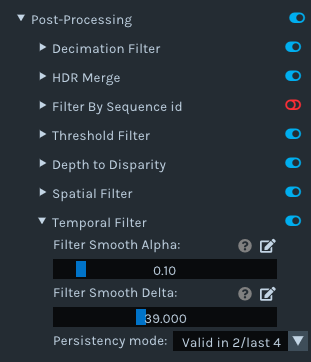
3. Tuning the camera using the guides and tools referenced above may reduce depth fluctuations. If you require quick results then a method for minimizing fluctuation is to go to the Post Processing section of the Viewer's side-panel, expand open the Temporal Filter option and change the Filter Smooth Alpha setting from its default value of '0.4' to a smaller value of '0.1'.
Left-clicking on the pencil icon beside the Filter Smooth Alpha option enables you to manually type in a value instead of using the slider.
-
Thank MartyG, I will try step by step and ask later if I get into trouble.
Please sign in to leave a comment.
Comments
2 comments