Unable to update D435i firmware
I have an "Weird" issue in updating FW on one of D435i with an error "Failed to locate a device in FW update mode"
What I tried
- Update fw from realsense-viewer both on Ubuntu and Windows
Stops updating with "ERROR: Recovery device did not connect in time!" error after the progress bar went up to 30%. - Update through "rs-fw-update -f Signed_Image_UVC_5_12_7_100.bin", but failed
updating with the following errorUpdating device:
Name: Intel RealSense D435I, serial number: 141722078311, update serial number: 143523061992, firmware version: 05.12.07.150, USB type: 3.2

 23/03 21:29:30,048 ERROR [139996927975744] (librealsense-exception.h:52) get_xu(...). xioctl(UVCIOC_CTRL_QUERY) failed Last Error: Protocol error

Failed to locate a device in FW update mode - FW update after factory reset `Intel.Realsense.CustomRW -g`
- Update to the latest Signed_Image_UVC_5_13_0_50.bin.
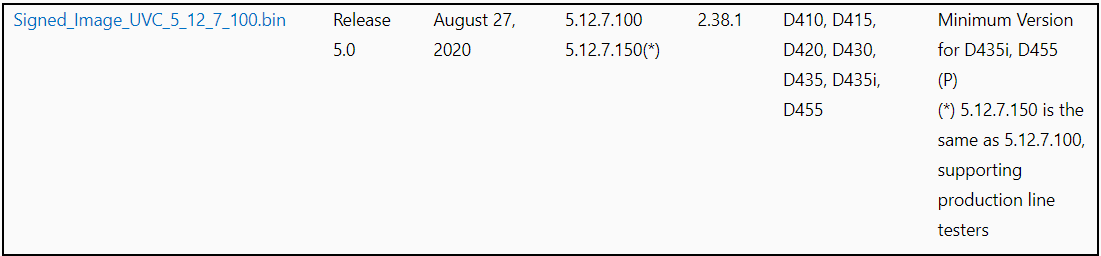
Current FW is 05.12.07.150 which is not listed in https://dev.intelrealsense.com/docs/firmware-releases and I'm wondering how this device is in this weird version.
> rs-fw-update -l

Connected devices:
1) Name: Intel RealSense D435I, serial number: 141722078311, update serial number: 143523061992, firmware version: 05.12.07.150, USB type: 3.2
-
Hi Kota Mogami The firmware releases page states in its notes that 5.12.7.150 is the same as the 5.12.7.100 version that is listed. It is stated as the minimum firmware version for D435i and D455.
The 30% stage on the progress bar is typically the point at which the RealSense Viewer's update mechanism performs a hardware reset of the camera before progressing to the next stage of installing the firmware. So it sounds as though the camera is being reset and then the Viewer cannot re-detect the camera afterwards and time-outs.
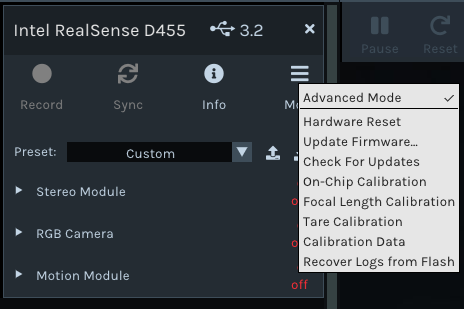
When attempting to update the firmware in the Viewer, are you doing so by selecting the Update Firmware menu option from the drop-down menu of the 'More' option and then selecting the Signed_Image_UVC_5_13_0_50.bin file that you downloaded to your computer, please?
-
Thanks, MartyG.
Oh, I understand about 5.12.7.150.
Regarding the firmware update on realsense-viewer, yes, I select "Update Firmware" then selected the bin file "Signed_Image_UVC_5_13_0_50.bin" downloaded from the realsense firmware list page.
-
Hi MartyG,
Hmm, recovery didn't work either.
> rs-fw-update -r -f Signed_Image_UVC_5_13_0_50.bin


Update to FW: Signed_Image_UVC_5_13_0_50.bin

No recovery devices were found!

> rs-fw-update -l

Connected devices:
1) Name: Intel RealSense D435I, serial number: 141722078311, update serial number: 143523061992, firmware version: 05.12.07.150, USB type: 3.2 -
Are you updating the firmware using the official short 1 meter cable that was supplied with the camera, please? Using a longer cable of your own choice for a firmware update, especially 'active repeater' extension cables, is not recommendable.
Do you have access to another computer that you can attempt the firmware update on? The firmware is stored inside the camera hardware and not on the computer, so a firmware update made on one computer is carried over to another computer inside the camera.
-
My research of your case only found a couple of previous cases of ERROR: Recovery device did not connect in time! In one of them, the successful solution was to "restore Windows 10". This could mean wiping and reinstalling Windows 10, but it could also mean using a Windows restore point (a save of an earlier Windows state) to roll back the computer to an earlier configuration where a problem was not occurring. Restore points can only be saved if Windows already had the feature enabled in the past though.
Next, let's try updating the firmware in an older version of the RealSense Viewer that still had an option called Install Recommended Firmware instead of the 'Check For Updates' option that the current Viewer has instead.
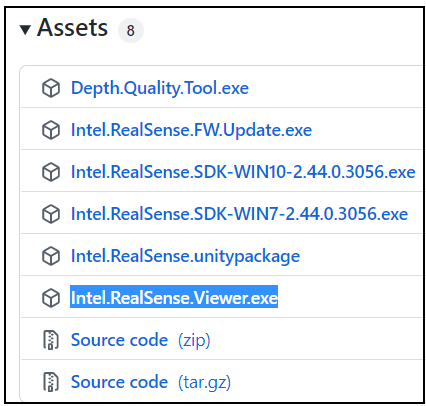
Please visit the release page for the 2.44.0 version of the RealSense SDK at the link below and go to the 'Assets' file list. Then left-click on the Intel.RealSense.Viewer.exe link to download it, and run the file to launch the 2.44.0 version of the Viewer after download has completed.
https://github.com/IntelRealSense/librealsense/releases/tag/v2.44.0
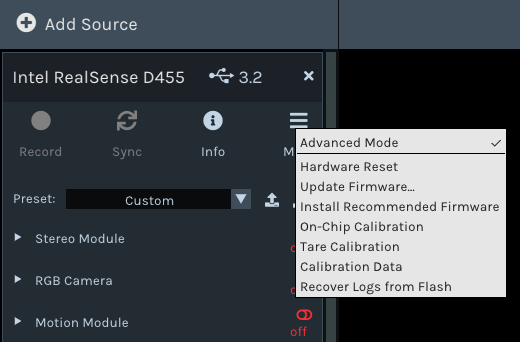
Selecting 'Install Recommended Firmware' from the "More" menu should cause firmware 5.12.12.100 to automatically begin installing instead of needing to provide the firmware file (since the Recommended firmware was bundled in the Viewer).
Please sign in to leave a comment.
Comments
11 comments