Unable to detect D555 PoE camera
Hi everyone,
I’m trying to set up a RealSense D555 camera over Ethernet using PoE, but I’m unable to connect to it. Here are the details:
* Camera: RealSense D555 (brand new)
* Connection: PC ↔ TL-POE150S injector ↔ D555 camera
* PC OS: Windows 10
* Ethernet adapter on PC: Intel I219-LM, link speed shows 1 Gbps
* Firewall: Disabled for testing (`Set-NetFirewallProfile -Profile Domain,Public,Private -Enabled False`)
* Direct ping from PC to camera IP 192.168.11.55 ok.
* Jumbo packet set to 9014 bytes
The camera never camera gets never detected in realsense viewer. I have built the SDK for network support.
C:\librealsense\build\Release>rs-eth-config.exe --eth
RealSense Ethernet Configuration Example
=========================================
No RealSense devices found!
C:\librealsense\build\Release>rs-dds-sniffer.exe
rs-dds-sniffer listening on domain 0 (press Ctrl+C to stop)
C:\librealsense\build\Release>rs-enumerate-devices.exe
No device detected. Is it plugged in?
Please help connect this camera with my laptop.
-
Hi Sidket Criss Do you have a USB cable plugged into the D555 too? If you do then please disconnect it, otherwise the camera cannot operate in PoE ethernet mode.
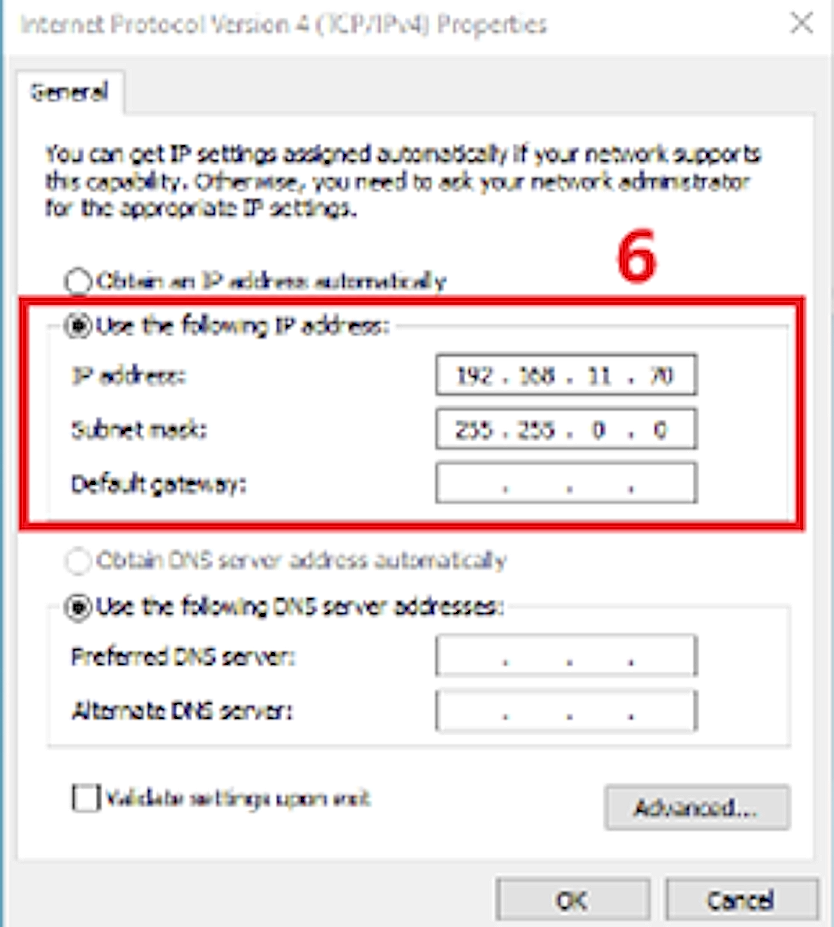
Have you tried changing the subnet mask to 255.255.255.0 in the Windows network settings as recommended in the illustrated setup guide for Windows?
https://github.com/realsenseai/librealsense/issues/14293#issuecomment-3304919513
On your PoE injector, is the ethernet cable between the computer and injector connected to the Data In port and the camera's ethernet cable connected to the Data Out port?
Are you using a version of the SDK and Viewer that supports D555? This would be version 2.56.4 or newer.
Can you confirm please that you built the SDK on Windows from source code with CMake and included the flag -DBUILD_WITH_DDS=ON in the CMake build instruction? This flag is necessary to enable PoE ethernet support in the SDK. Instructions for a source code build can be found at the link below if you have not built the SDK from source on Windows already.
https://github.com/realsenseai/librealsense/blob/master/doc/installation_windows.md
Ignore the Enabling metadata on Windows instructions that come after the CMake installation instructions.
-
Please find the following information of my configurations and steps perfomred.
1. No USB cable connected. Camera is powered and connected only via PoE Ethernet.2. PC connected to LAN In
3. Camera connected to Data + Power Out. The injector I use is TL-POE150S injector4. Built from source: Intel RealSense SDK 2.0 v2.57.6
5. Built was successfull using following command.
PS C:\librealsense\build> cmake .. -G "Visual Studio 17 2022" -A x64 -DBUILD_WITH_DDS=ON6. Detection results
rs-enumerate-devices.exe
No device detectedrs-eth-config.exe --eth
No RealSense devices foundrs-dds-sniffer.exe
listening on domain 0 (no output)C:\WINDOWS\system32>ping 192.168.11.55
Ping statistics for 192.168.11.55:
Packets: Sent = 4, Received = 4, Lost = 0 (0% loss),
Approximate round trip times in milli-seconds:
Minimum = 2ms, Maximum = 61ms, Average = 25ms7. Following is my network configuration
Ethernet adapter Ethernet:Connection-specific DNS Suffix . :
IPv4 Address. . . . . . . . . . . : 192.168.11.100
Subnet Mask . . . . . . . . . . . : 255.255.255.0
Default Gateway . . . . . . . . . :
8. Other infoPC OS: Windows 10
Ethernet adapter on PC: Intel I219-LM, link speed shows 1 Gbps
Firewall: Disabled for testing
Jumbo packet set to 9014 bytes
Please guide me what's wrong, I been trying for days. -
I ran the commands you suggested. Please find the output I got.
C:\librealsense\build\Release>rs-dds-config
rs-dds-config 2.57.6.0

-F- No device found supporting Eth
-F- Did not apply requested configuration changes

C:\librealsense\build\Release>rs-enumerate-devices
No device detected. Is it plugged in? -
Hi, please see results.
Ethernet adapter Ethernet:

   Connection-specific DNS Suffix  . :
   IPv4 Address. . . . . . . . . . . : 192.168.11.70
   Subnet Mask . . . . . . . . . . . : 255.255.255.0
   Default Gateway . . . . . . . . . :

C:\librealsense\build\Release>ping 192.168.11.55

Pinging 192.168.11.55 with 32 bytes of data:
Reply from 192.168.11.55: bytes=32 time=2ms TTL=64
Reply from 192.168.11.55: bytes=32 time=2ms TTL=64
Reply from 192.168.11.55: bytes=32 time=2ms TTL=64
Reply from 192.168.11.55: bytes=32 time=3ms TTL=64

Ping statistics for 192.168.11.55:
    Packets: Sent = 4, Received = 4, Lost = 0 (0% loss),
Approximate round trip times in milli-seconds:
    Minimum = 2ms, Maximum = 3ms, Average = 2ms

C:\librealsense\build\Release>rs-dds-config --dhcp on
rs-dds-config 2.57.6.0

-F- No device found supporting Eth
-F- Did not apply requested configuration changes -
D555 is 'plug and play' in USB mode, meaning that it should be detected immediately upon insertion of the USB cable in the computer's USB port without having to make any special settings.
If the camera cannot be detected even in USB mode then it indicates that the camera may be unfortunately dead. In that case, I recommend contacting the retailer that you purchased it from to enquire about a replacement under warranty.
If it was purchased from the official RealSense Store then you can use the web contact form at the link below, setting the topic as Return/Warranty.
https://www.realsenseai.com/realsense-e-commerce-store-inquiry/
Please sign in to leave a comment.
Comments
11 comments