D555 is not detected in lsusb and realsense-viewer
I just got my D555 camera today and I am having trouble to get it detected by my laptop with Ubuntu 22.04.5 LTS (kernel version is 6.2.0.39-generic). Below are the steps:
- Install RealSense SDK 2.0 pre-build package per link: https://github.com/realsenseai/librealsense/blob/development/doc/distribution_linux.md
- Connect Netgear POE Switch (GS308EP) to my Router and connect D555 camera to the switch
- run "realsense-viewer", no camera detected.
- disconnect the camera from the switch and disconnect the ethernet cable.
- connect USB-C from the camera to my laptop
- run "lsusb", no camera detected and the output is below:
Bus 006 Device 001: ID 1d6b:0003 Linux Foundation 3.0 root hub
Bus 005 Device 001: ID 1d6b:0002 Linux Foundation 2.0 root hub
Bus 002 Device 002: ID 0846:9060 NetGear, Inc. Wireless_Device
Bus 002 Device 001: ID 1d6b:0003 Linux Foundation 3.0 root hub
Bus 001 Device 002: ID 3297:1969 ZSA Technology Labs Moonlander Mark I
Bus 001 Device 005: ID 8087:0026 Intel Corp. AX201 Bluetooth
Bus 001 Device 004: ID 1bcf:28c4 Sunplus Innovation Technology Inc. Integrated_Webcam_HD
Bus 001 Device 003: ID 0a5c:5842 Broadcom Corp. 58200
Bus 001 Device 001: ID 1d6b:0002 Linux Foundation 2.0 root hub
Bus 004 Device 001: ID 1d6b:0003 Linux Foundation 3.0 root hub
Bus 003 Device 001: ID 1d6b:0002 Linux Foundation 2.0 root hub
Afterwards, I uninstall the Realsense SDK 2.0 pre-build package and install it using the manual installation method per https://github.com/realsenseai/librealsense/blob/development/doc/installation.md . However, the camera is still not detected by my laptop when only usb-c is connected from the camera to the laptop.
Please help and let me know what other debugging methods I can use to check if the camera is defective or my setup is wrong?
-
Hi Terri Terri I recommend building the SDK from source code with CMake using the installation.md instructions but making sure that you include the flag -DBUILD_WITH_DDS=ON in the CMake build instruction so that the SDK compiles with ethernet support enabled.
The switch needs to support PoE, and the ethernet cable from computer to switch should be plugged into the In port of the switch and the camera should be plugged into the Out port.
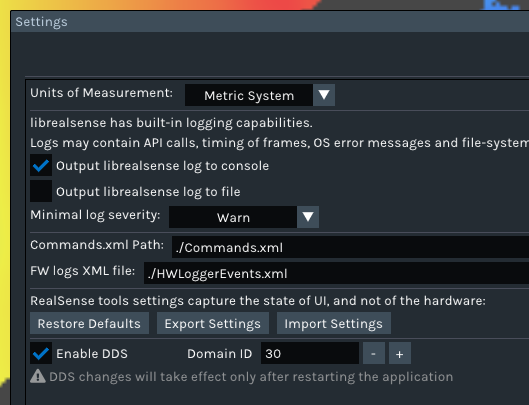
There are also a range of DDS configuration settings that need to be made that are described at the link below.
https://github.com/realsenseai/librealsense/issues/14284#issuecomment-3349204762
I note though that the camera is also not being detected when using it with a USB cable with the ethernet cable disconnected. The camera should be 'plug and play' and detected automatically on a USB connection when the ethernet cable is not inserted.
The USB cable that you use should be a high quality one designed for data transfer and not an inexpensive cable intended only for device charging.
Please also try unplugging the USB cable from the base of the camera, turning the micro-sized connector around the other way and re-inserting it to see if it makes a difference (USB-C cables are two-way insertion at the micro-sized end).
-
Hello MartyX,
USB Mode is working:
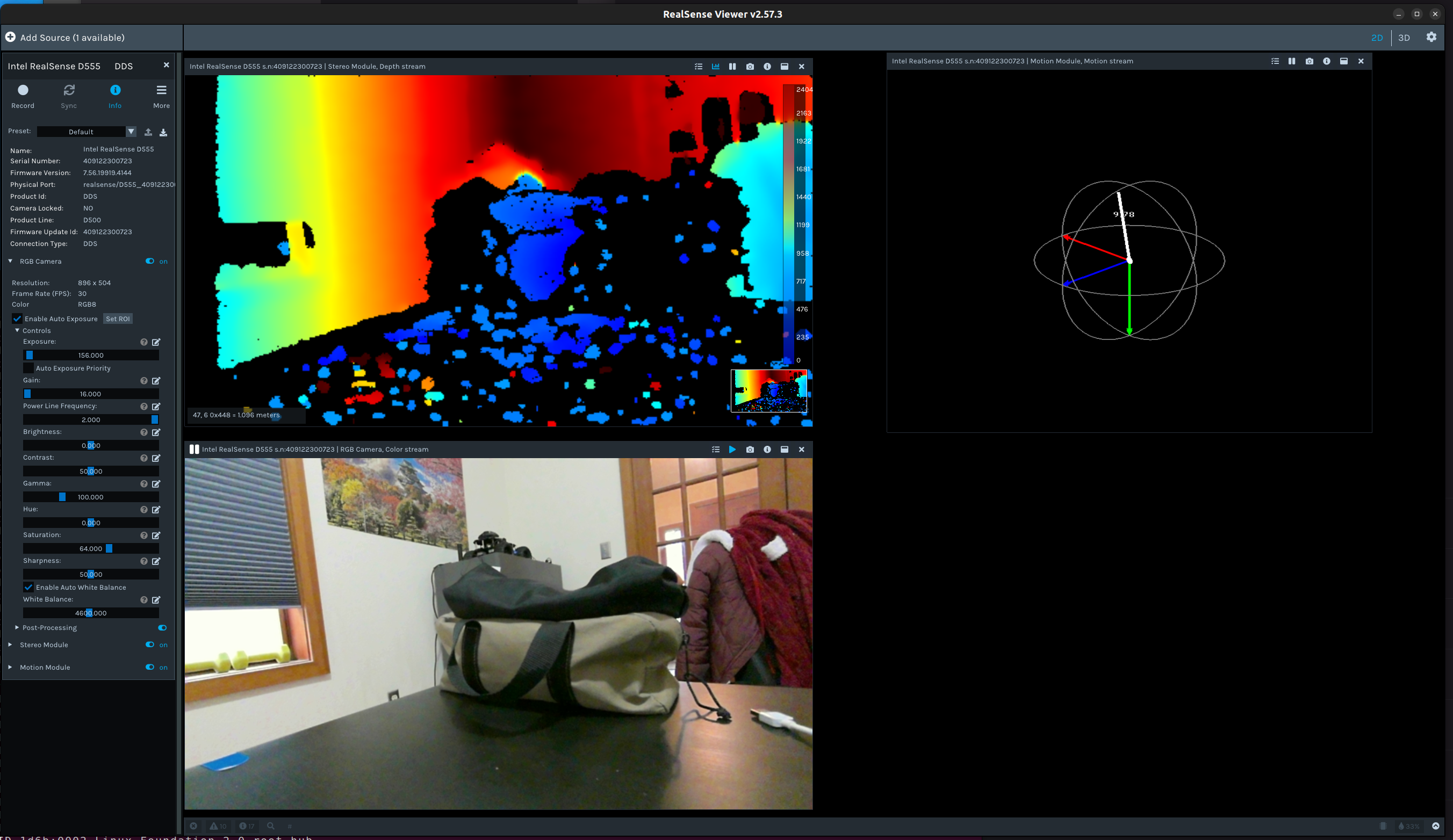
After changing the USB cable, the camera is detected by realsense-viewer now. I updated the camera firmware to 7.56.19919.4144.
POE Mode is NOT working:
After trying steps below, the camera is still not working in POE mode. I wonder if this is related to the switch I am using? Do you have a recommended POE switch that works with this camera?
1. I rebuild RealSense SDK 2.0 (v2.57.3) with flag -DBUILD_WITH_DDS=ON
2. Set my laptop ethernet MTU to 9000
3. I am using Netgear POE switch GS308EP. I connect my laptop and the camera to the switch. Disable DHCP on the switch and laptop. Set the switch IP to 192.168.11.239 and laptop IP to 192.168.11.70. Both subnet mask is set to 255.255.255.0. I can ping the camera default IP 192.168.11.55 but the camera is not detected by realsense-viewer. rs-dds-config shows 'no device found supporting Eth'
4. Enable DHCP on the switch and my laptop. Connect the switch to my router and laptop is connected to the switch. I still can't ping the camera
5. Then I connect the camera with USB and set the camera subnet to 255.255.0.0. Remove USB cable from camera. Connect the camera to the POE switch. I still can't ping the camera.
6. Then I connect the camera with USB and enable dhcp on camera in the dds config. Remove USB cable from camera. Connect the camera to the POE switch. I still can't ping the camera
Please sign in to leave a comment.
Comments
4 comments