RealSense D435i (counter lines)
Hardware: Raspberry pi4
Operating System (OS): RaspbianOS buster
Camera in use: RealSense D435i
Library: Open CV
Language: Python3
Dear Intel RealSense team,
We are software developers from Korea and currently, we are using RealSense Camera in our project.
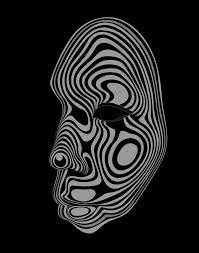
Our goal is to extract the distance between the user's face and the device as a depth value using RealSense D435i and connect similar depth values to create a contour line just above the user's face.
Are there any RealSense git examples that can utilize this?
Also, we would like to know if there any development method that can create a contour line directly on the face using only the depth camera.
-
Hi Dev Luenah If you are generating a 3D point cloud and would like to generate a line that follows the 3D contours of the cloud then drawing a polyline might be a suitable method to use, as described in the link below.
https://github.com/IntelRealSense/librealsense/issues/3868#issuecomment-487654994
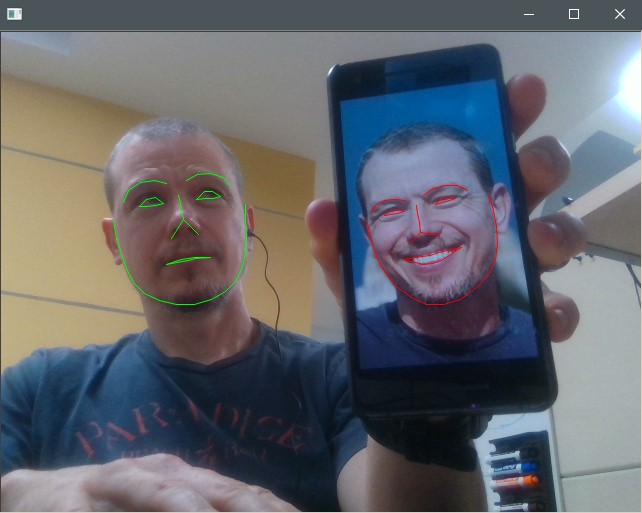
In regard to drawing lines directly on the face, the RealSense SDK has a C++ example program for the Dlib facial landmark library.
https://github.com/IntelRealSense/librealsense/tree/master/wrappers/dlib/face
-
The OpenCV instructions findContours and drawContours may help to produce this kind of image.
https://docs.opencv.org/4.x/df/d0d/tutorial_find_contours.html
https://stackoverflow.com/questions/51022381/how-do-i-connect-closest-points-together-using-opencv
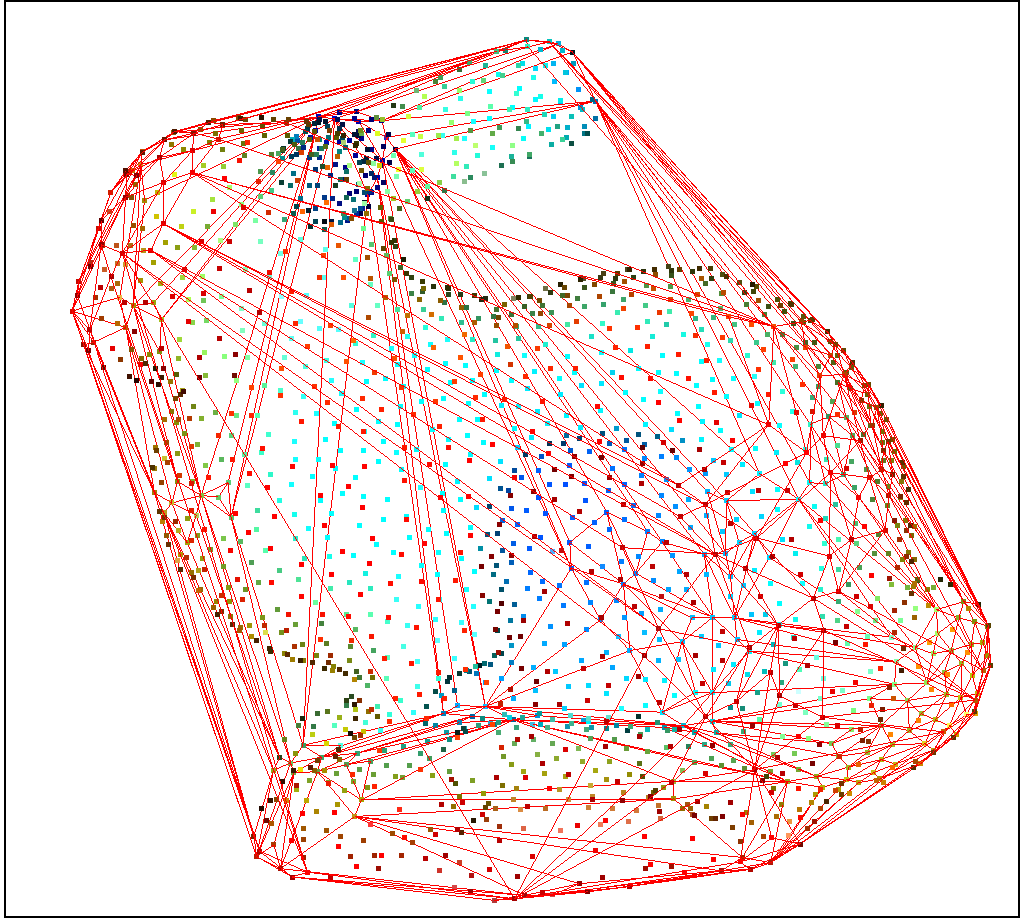
Another approach could be to create a convex hull to join pointcloud points up into lines. Popular vision computing and point cloud libraries such as OpenCV, PCL, Open3D, Pyntcloud, etc have convex hull instructions. Here is an example of an Open3D tutorial:
http://www.open3d.org/docs/release/tutorial/geometry/pointcloud.html
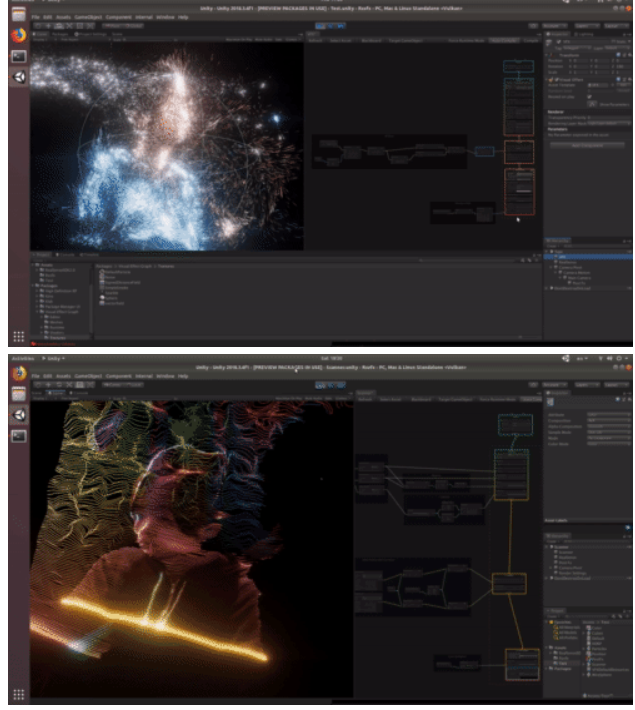
Another option that you could explore is generating a Visual Effect Graph with RealSense pointcloud data using the Unity engine, as described in the link below.
https://github.com/keijiro/Rsvfx
 Thank you for the quick reply!
Please sign in to leave a comment.
Comments
4 comments