Microsoft TEAMS calls: D415 mixes RGP/Depth stream
Hallo Realsense community,
Does anybody of you also have problems with a Realsense camera in TEAMS calls.
I have the following problem:
In gernal, a Realsense camera installs 2 drives in the device manager. One for "RGP" and one for "Depth"
When I do a TEAMS call and I select the camera "....Depth" (because RGP is not shown in TEAMS settings), the other person is seeing my camera picture perfect, BUT I can't see myself in the small camera preview window (it's black, or it looks like it has some shapes inside, but extremely dark)
--> Why is "...RGP" not showing up?
--> Why can my colleagues see me, but I can't?
A similar problem I have with OBS studio (Streaming software), where the D415 not starts, or starts first after opening the settings,....
When I use the Realsense VIEWER software, RGB and Depth works well.
--> So conclusion for me is, that somehow Windows mixes the "Depth" and "RGB" names and cannot handle this in the application software.
(Interesting is also the sometime "Depth" appears as the camera and other times "RGB",....and sometimes also both???)
Any help would be highly appreciated.
Thanks a lot in advance.
-
Hi Hploetz I performed a test call in Teams with a D415 and a D435i but didn't experience the problem that you described.
You can perform a test call yourself in Teams by following the steps below.
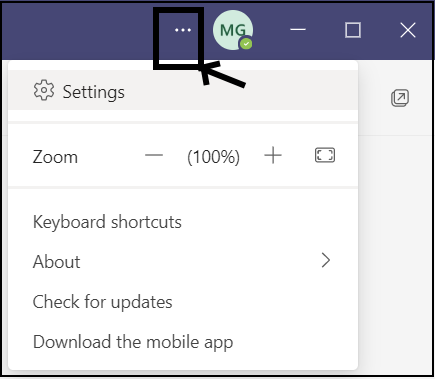
1. Left-click on the three dots next to your profile button to drop a menu down, and select Settings from that menu.
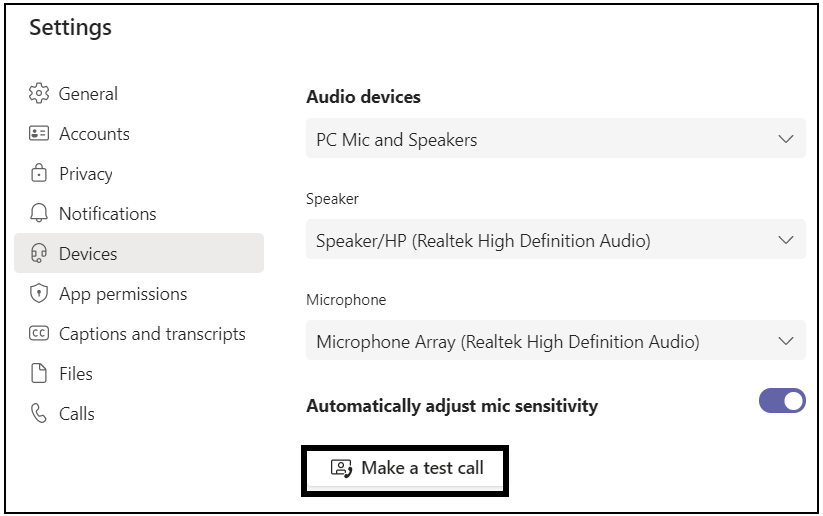
2. Select the Devices category at the side of the Settings panel and then in the Devices section, left-click on the Make a test call button. Teams should then activate your camera and display the RGB video thumbnail from your camera in the bottom corner of the call. I did not have to select an RGB or Depth driver in this test mode, as the RGB stream of the RealSense camera was selected automatically.
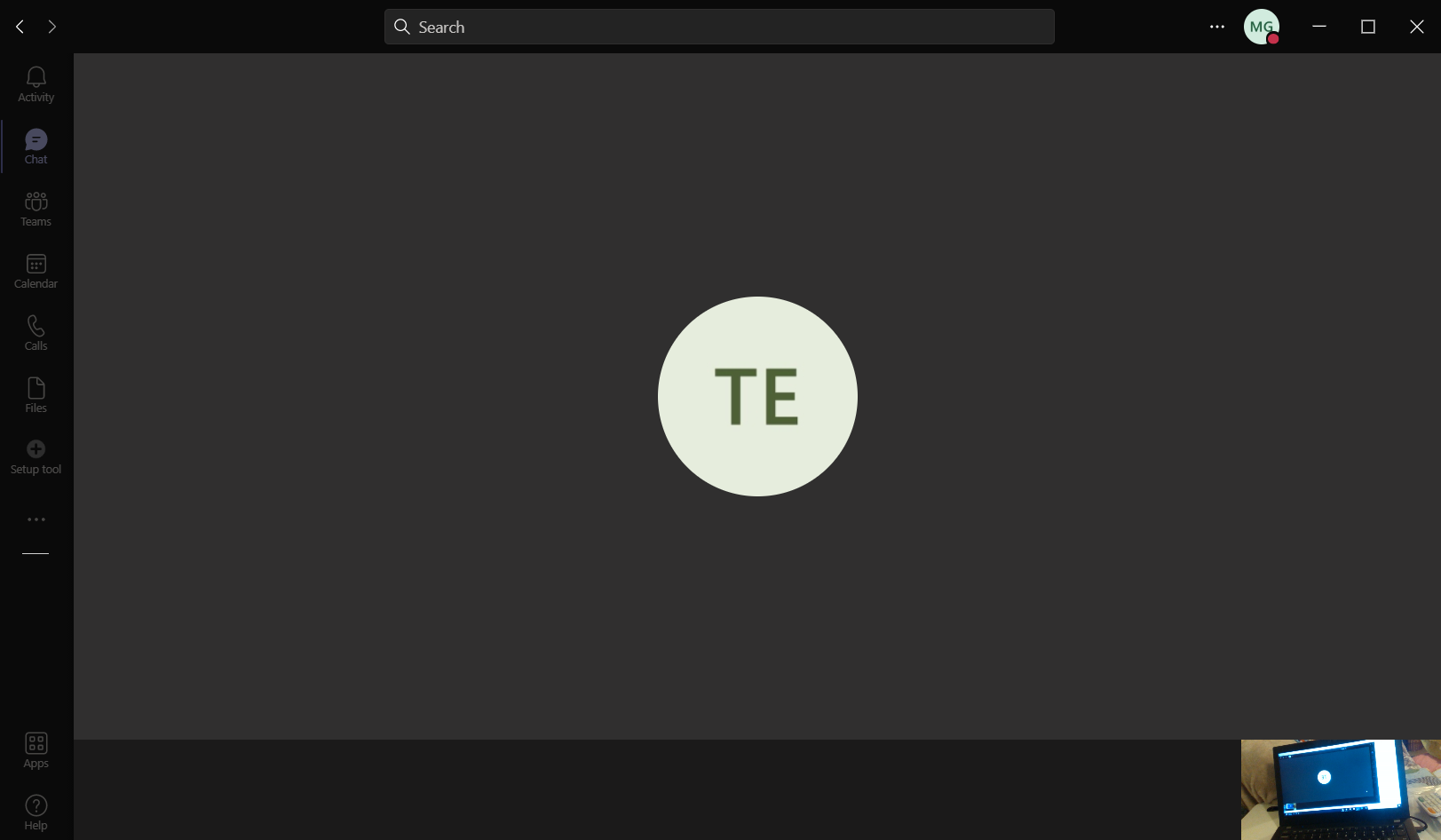
Do you still experience a black / dark video thumbnail when making a test call using the above method?
In regard to problems with OBS, some video applications (including the built-in Camera application in Windows) may not display the RGB stream or may do so after first toggling an option.
-
Hi MartyG,
When I'm doing the test call, it's the same as in the normal call. I see only black, in the right bottom window (where you see you Laptop).
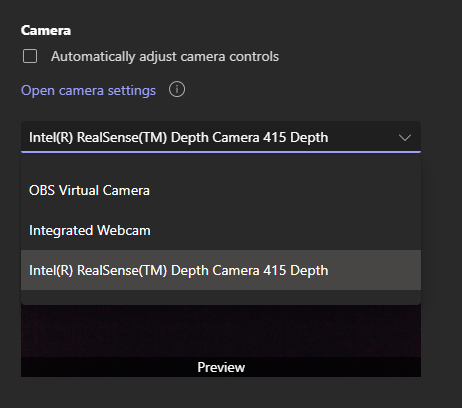
Scrolling down in the TEAMS setting, I can only chose ".....415 Depth". But nothing with RGB.
Also in the Windows10 device manager, I see Depth and RGB as two separate devices.
Thanks for your further support.
-
Are you using a laptop? If you are then it would likely have a built-in RGB webcam in the screen. If you open the Cameras section of the Device Manager on a laptop without the RealSense camera plugged in then the laptop camera should be listed there.
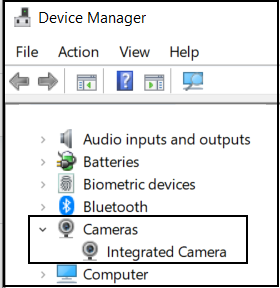
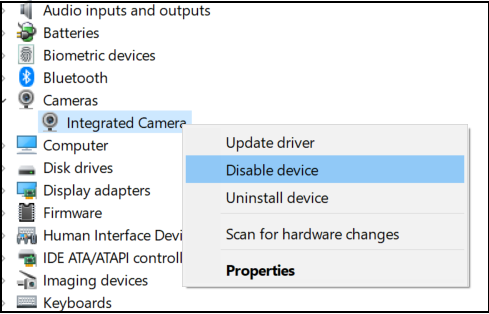
You can test for whether a built-in webcam might be conflicting with the RealSense camera by right-clicking on the listing of the integrated camera and selecting Disable device from the menu. It is simple to re-enable it after the test by right-clicking on the camera and selecting 'Enable device'.
-
If you go back to Settings > Devices in Teams and use the slider at the side to scroll down to the Cameras section of the options then you should at least have the option to select the laptop screen's integrated camera as your default RGB source for calls if the RealSense camera cannot display.
.
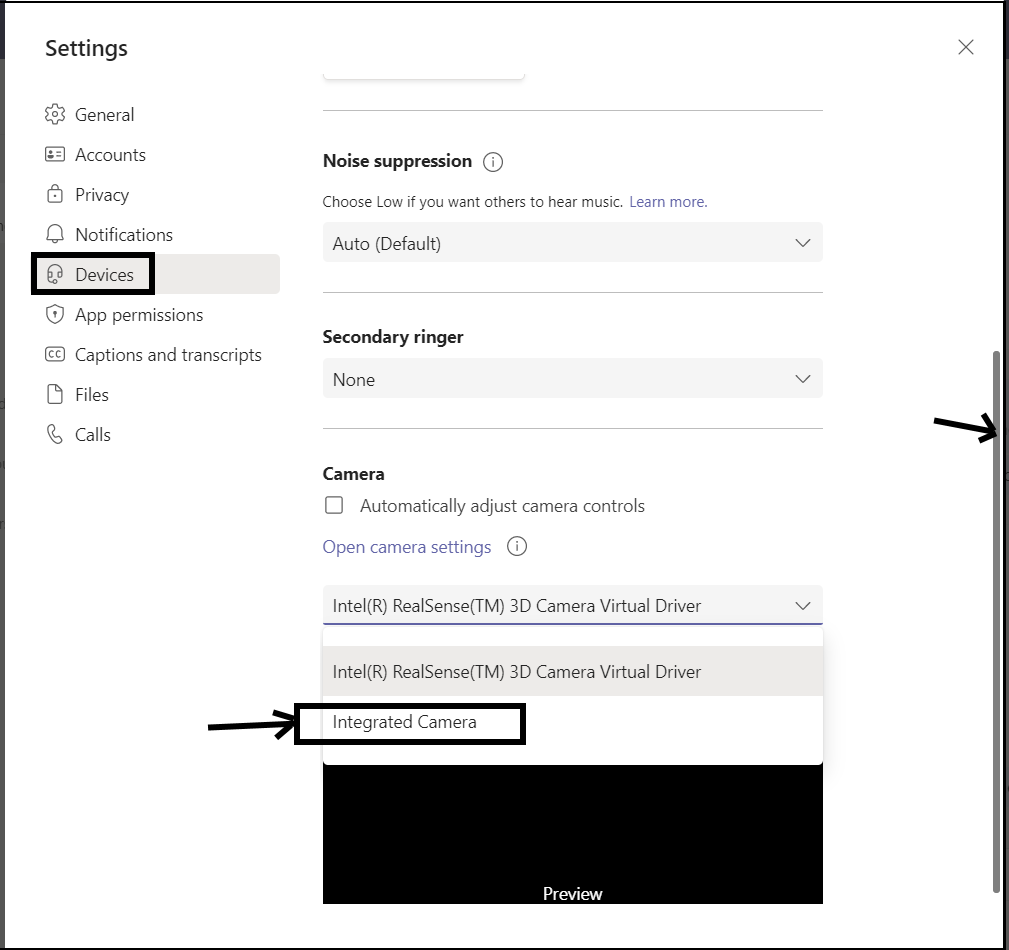
After initially entering the Settings window with my D415 unplugged, I plugged it in and the camera was automatically added to the driver list and showed a preview of the RGB. The Depth stream was not offered as a selectable driver on my own D415.
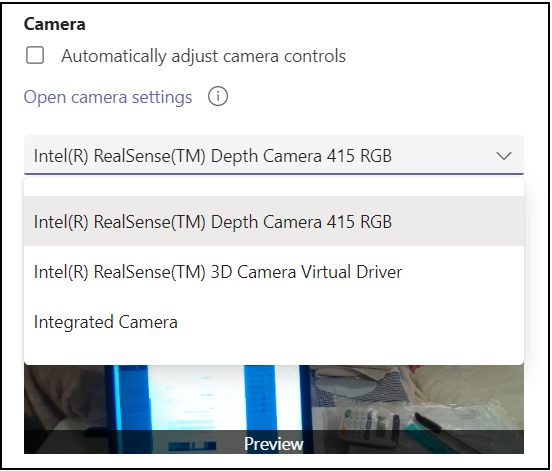
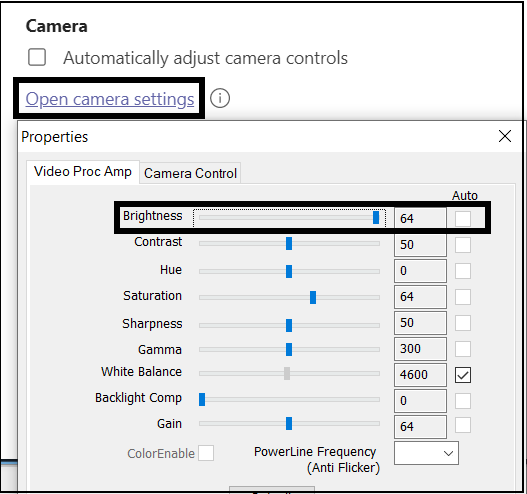
If you only have Depth available as a selectable RealSense driver, do you have the option to make the image more visible by left-clicking on the Open camera settings link to bring up the configuration controls and maximizing the 'Brightness' slider (as you mentioned earlier that the image was black but there seemed to be moving shapes).
-
You described exactly the problem.
When the D415 is plugged in, it pops up as "....Depth", but not as "....RGB".
See screenshot.Also it's not possible to "Open Camera Settings". I can click, but nothing happens (when I chose the integrated camera of the Laptop, I see the same settings as you).
So, it's really weird.
Question: Is it possible to deinstall all drivers and make the Laptop clean from the D415. I did this already in the device manager, but maybe it's not all deleted, because the result was the same as before.
-
I searched now by myself ad found a driver on intel.com.
I clicked unzip and installed "RS400Camera.inf".
And hurry,.....NOW it works!
Seems the Windows10 Standard driver are not able to support everything.
Please sign in to leave a comment.
Comments
11 comments