Intel realsense D435 calibration not working
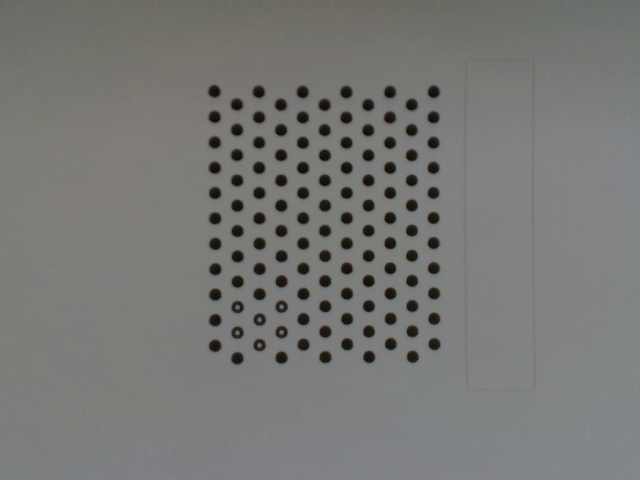
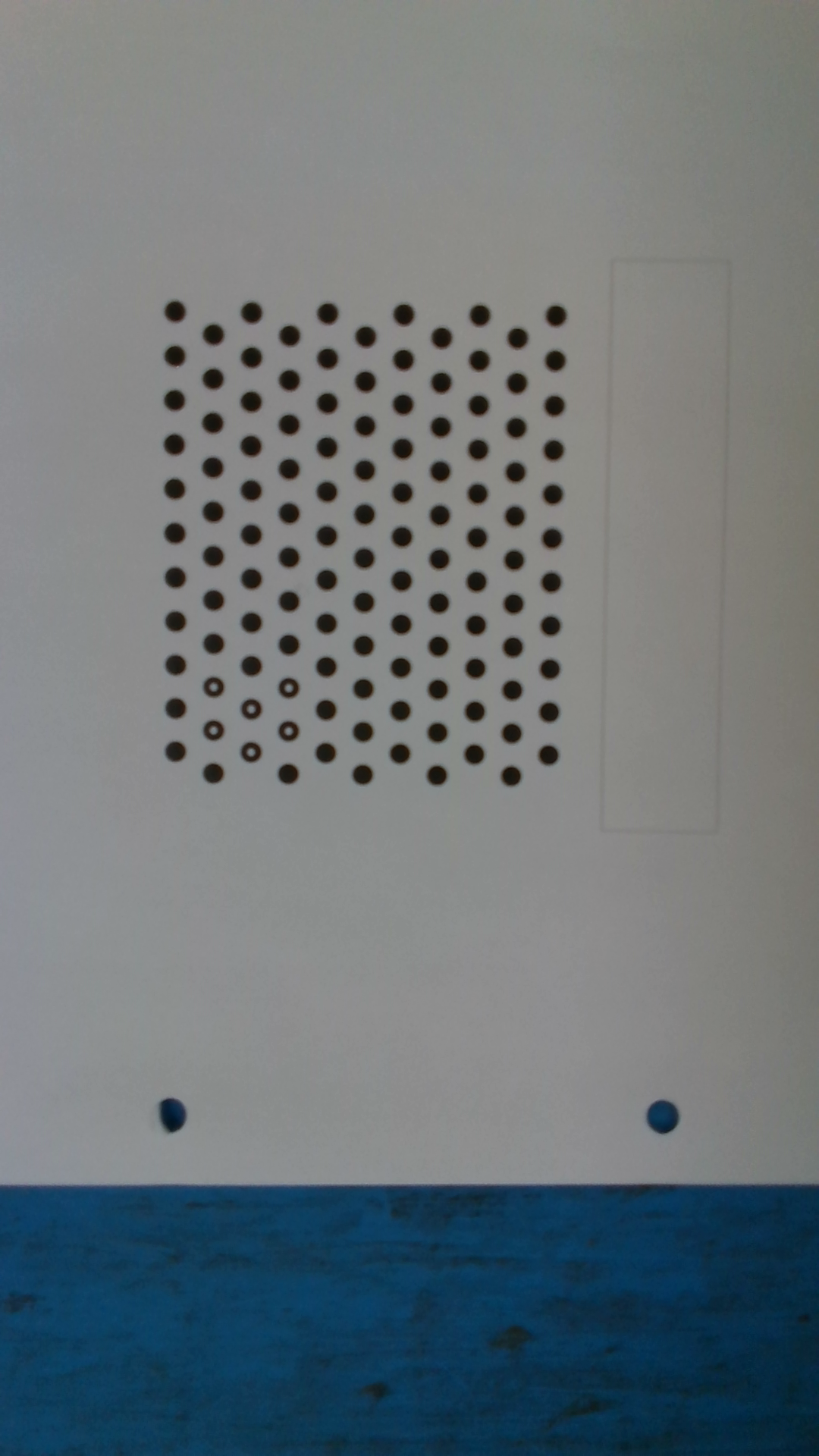
For our masters thesis we are trying to calibrate the realsense D435 within Halcon(machine vision software). To do this we take pictures using the intelrealsense viewer and later import them into halcon. When we take pictures with a resolution of 640x480 halcon has no problems finding calibration marks on these images. But when we increase the resolution to 1920x1080 it can no longer register these marks. Anyone knows what can be the cause of this?
- 640x480
- 1920x1080
Thanks in advance
-
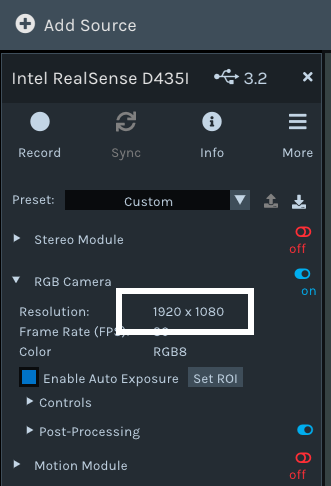
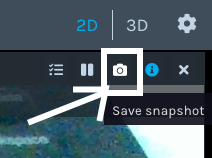
Hi Cedric Vanloon The 1920x1080 image looks blurred compared to the 640x480 one. Did you manually resize the 640x480 image or did you use the Snapshot button in the top corner of the Viewer window to export a PNG image whilst streaming at 1920x1080?
-
I did not manually resize it, I did it as you described above.
-
To check whether the blue area that is captured in the camera view at the higher resolution is responsible for the problem, I created a clean edit of the 1920x1080 image. Please right-click on the image below and select Save Image As to save the image file and then test it in your project.
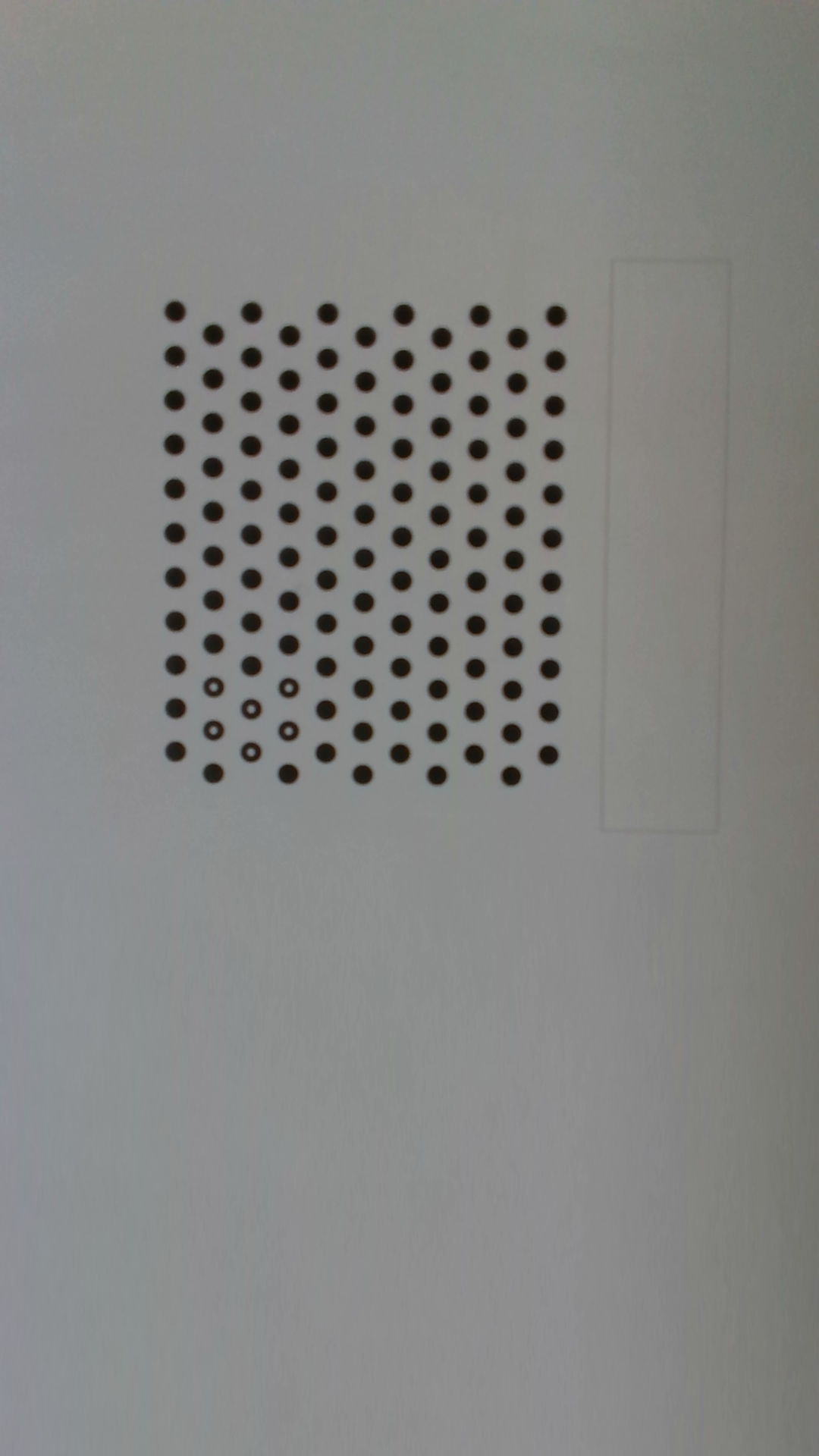
-
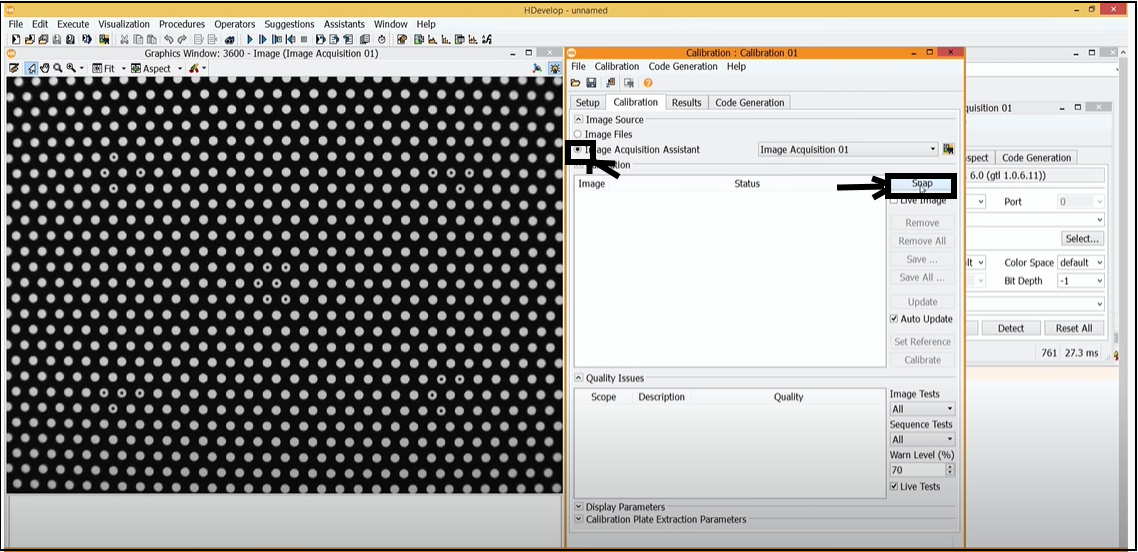
Halcon has dedicated software called HDevelop with functions in its Camera Calibration Assistant tool for calibrating with the calibration plate shown in your image.
https://www.mvtec.com/products/halcon/work-with-halcon/hdevelop/assistants
If the Image Acquisition Assistant option is selected instead of Image on the Camera Calibration Assistant window then the Assistant should have an option to use a Snap button to capture an image of the calibration plate to use for the calibration, as described in Halcon's YouTube tutorial video for calibrating a single camera in the link below.
https://www.youtube.com/watch?v=iEjH244KRbw&t=196s
Would using this tool instead of a PNG saved from the Viewer be an option for your Halcon project, please?
-
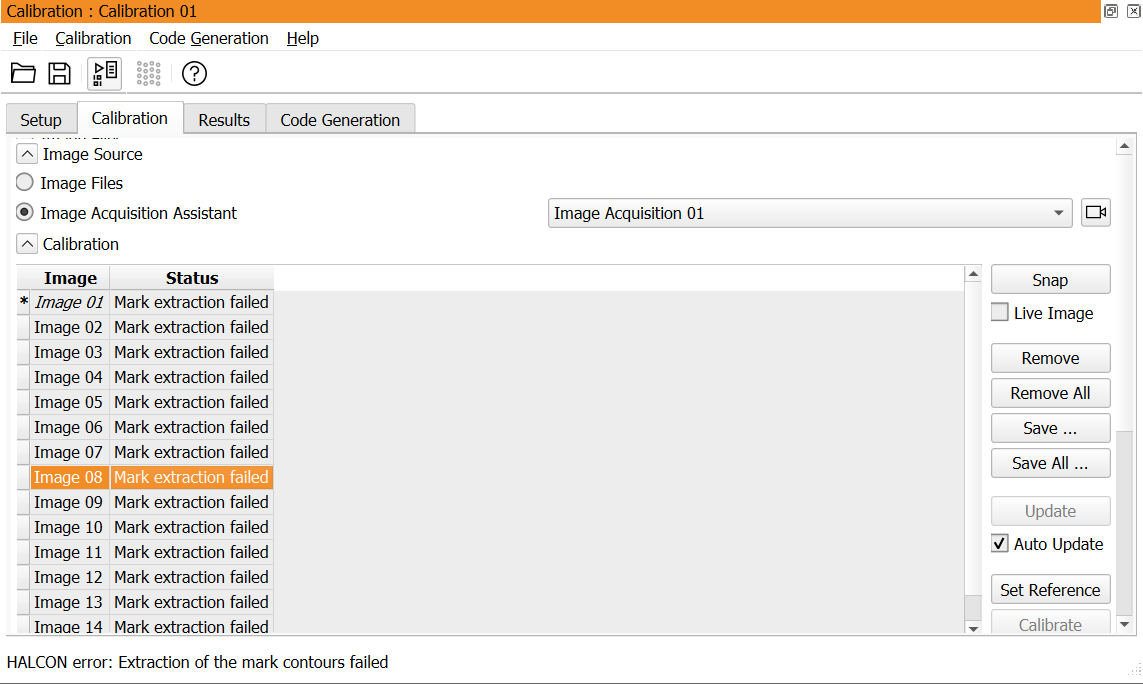
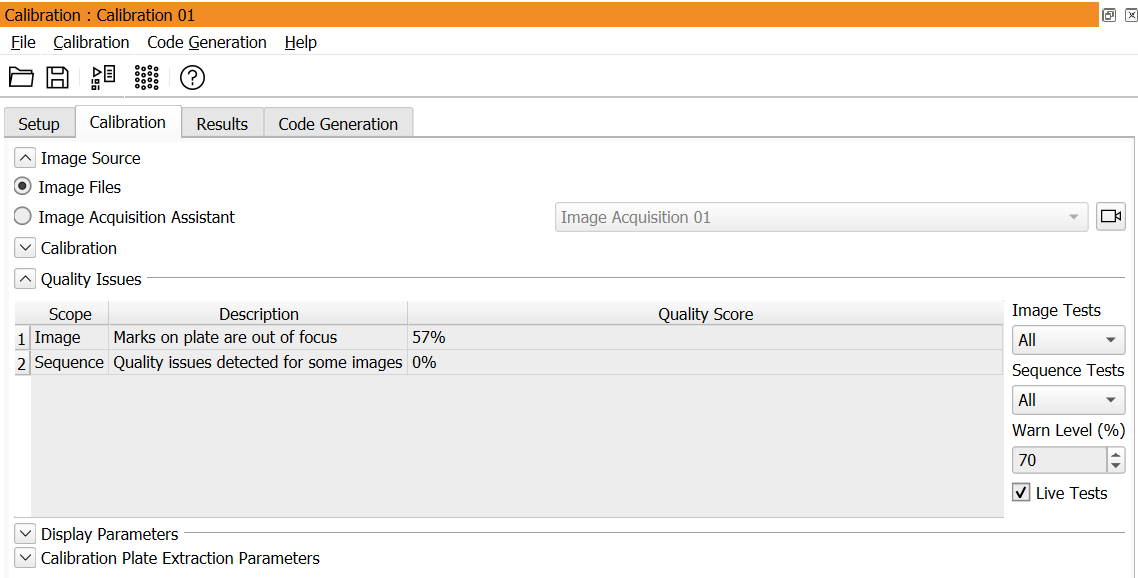
Yes, I mentioned earlier in the discussion that the 1920x1080 PNG image seemed blurred, and the image import tool seems to agree, stating that Marks on plate are out of focus.
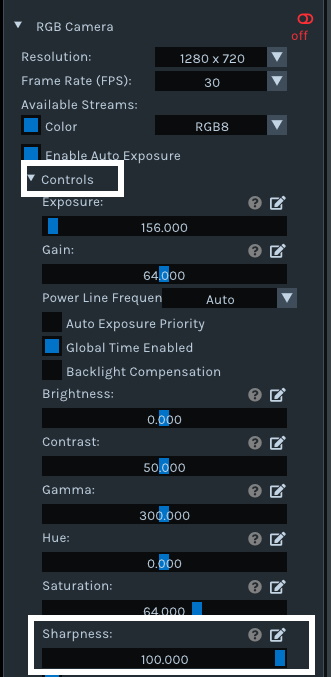
When generating a PNG with the Viewer, you could therefore go to the Controls section of the RGB options in the Viewer side-panel and maximize the slider beside the Sharpness option to sharpen the original image before exporting it with the Snapshot buton, and see whether the resulting PNG is more recognizable when imported.
-
That's great to hear, Cedric Vanloon - thanks very much for the update!
-
Hello Cedric Vanloon, can I ask you two things:
1- How did you manage to get the colour image directly from HALCON Image Assistant? I'm currently using a FRAMOS D415e and Realsense HALCON Interface, but it always retrieve depth information; to get a colour image I have to use the HDev script grab_data, but it doesn't work in the assistant.
2- Wich distorion model did you use (Areascan Division?)
Best regards,
Please sign in to leave a comment.
Comments
10 comments