RealSense d435MATLAB 接続設定
intel RealSense d435でMATLABでRGB画像と距離画像を取得したいのですが、接続できずに困っています。
以下のサイト
https://jp.mathworks.com/matlabcentral/answers/466604-realsense-d435-matlab
を参考にしたとき、Intel RealSense SDK for Windows10 をダウンロードしてMATLABにパスを通すことができましたが、
-
Translation:
I want to get RGB image and distance image with MATLAB with intel RealSense d435, but I'm having trouble connecting.
The following site:
https://jp.mathworks.com/matlabcentral/answers/466604-realsense-d435-matlab
When I referred to it, I was able to download the Intel RealSense SDK for Windows10 and pass it through MATLAB,
>> depth_example
The variable "realsense" or the class "realsense.pipeline" is undefined.
Error: depth_example (line 3)
pipe = realsense.pipeline ();
Will cause an error.
I changed the storage folder name of "depth_example.m" to "realsence" from the default, but when I change it back to "+ realsense", the folder name has been changed and it will not pass through the path. Also, when I try to register a folder with "+ realsense":
Method folders (starting with'@') and private folders
Cannot be added to the MATLAB search path.
I would like to know how to connect MATLAB in this situation.
-
The message below is adapted from this link:
https://github.com/IntelRealSense/librealsense/issues/9023#issuecomment-841079344
**************
こんにちは、以下の手順を使用して、WindowsにMATLABラッパーを最初から再インストールする方が簡単な場合があります。
1. SDKリリースページに移動し、バージョンリストを下にスクロールして、インストールするSDKバージョンの一番下まで移動します。
https://github.com/IntelRealSense/librealsense/releases
ファイルをダウンロードして実行すると、デフォルトを変更したくない場合は、数回クリックしてlibrealsenseの準備が整うまで、インストールプロセスの最後に到達するまで、[次へ]をクリックし続ける必要があるプロセスが実行されます。 すぐに使用します。
2.各バージョンリストの下部には、横に三角形が付いた**アセット**リンクがあります。 三角形を左クリックして展開し、ファイルリストを開きます。 ** Intel.RealSense.SDK-WIN10 **という名前で始まるファイルリンクを左クリックして、ブラウザーウィンドウの下部にあるSDKの大きなインストーラーファイルのダウンロードを開始します。
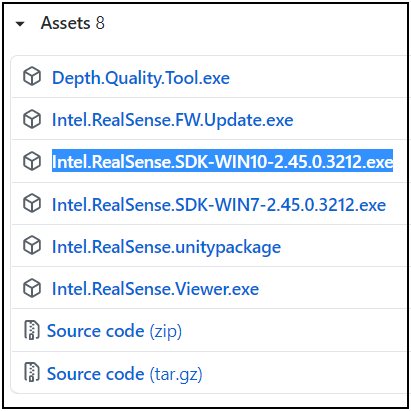
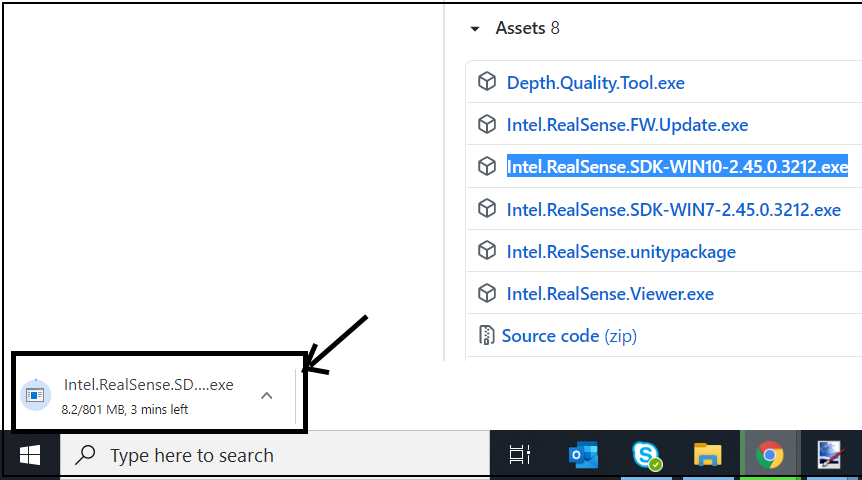
特定のバージョンを引き続き使用し、新しいバージョンにアップグレードしたくない場合は、インストーラーが以前のインストールを上書きするため、既に使用しているバージョンを選択するだけです。
3.ダウンロードが完了したら、ウィンドウの下部にあるダウンロードを左クリックして、ダウンロードしたインストーラーファイルを起動し、インストールプロセスを実行します。
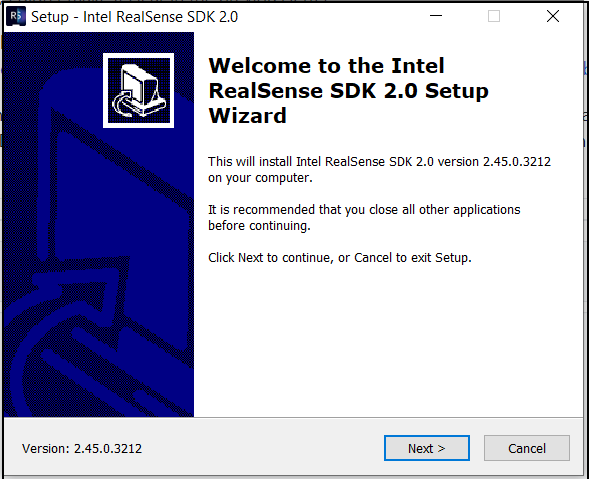
4.インストーラーウィンドウの[**次へ**]ボタンを左クリックし、その次のページで、[** Matlab Developer Package **]の横のボックスにチェックマークが付いていることを確認して、MATLABラッパーが一部としてインストールされるようにします。 SDKインストールプロセス全体の
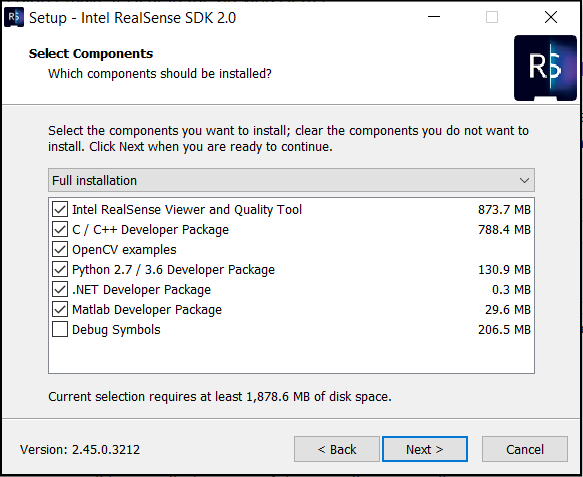
横にチェックマークがある場合は、[**次へ**]をクリックしてインストールプロセスを続行し、すぐに完了するまで[次へ**]をクリックし続けます。
5. SDKがWindowsコンピューターにインストールされたら、以下のディレクトリの場所に移動して、+ realsense というMATLABラッパーフォルダーを見つけます。
C: > Program Files (x86) > Intel RealSense SDK 2.0 > matlab
6. 以下のリンクのガイダンスを使用して、MATLAB検索パスに+ realsenseフォルダーを追加します。
https://github.com/IntelRealSense/librealsense/issues/2400
または、このフォルダーをコピーして、MATLABが見つけることができるコンピューター上の場所に貼り付けることもできます。
-
The instructions of the MATLAB wrapper say that you can add the realsense+ folder to a place where MATLAB can find it. So I believe that you have performed the correct action by placing realsense+ in the initial general working folder of MATLAB.
MATLABラッパーの指示によると、MATLABが見つけることができる場所にrealsense +フォルダーを追加できます。 したがって、MATLABの最初の一般的な作業フォルダーにrealsense +を配置することにより、正しいアクションを実行したと思います。
Please sign in to leave a comment.
Comments
4 comments