intel realsense f200 problem
Hi,
I'm trying to install F200 on my new laptop (Lenovo P52s). I have the drivers just how they should appear the DCM service runs, and I've installed the R2 SDK.
Using Windows 10 camera app, I can see that the camera works fine.
When I start Intel camera explorer, the camera is recognized on the first screen. Still, when the app actually starts, I get two sounds as if connected to a device and disconnected it a second later, and then I get a blue screen with the message, "Device failed due to malfunctioning" as you see in the pictures.
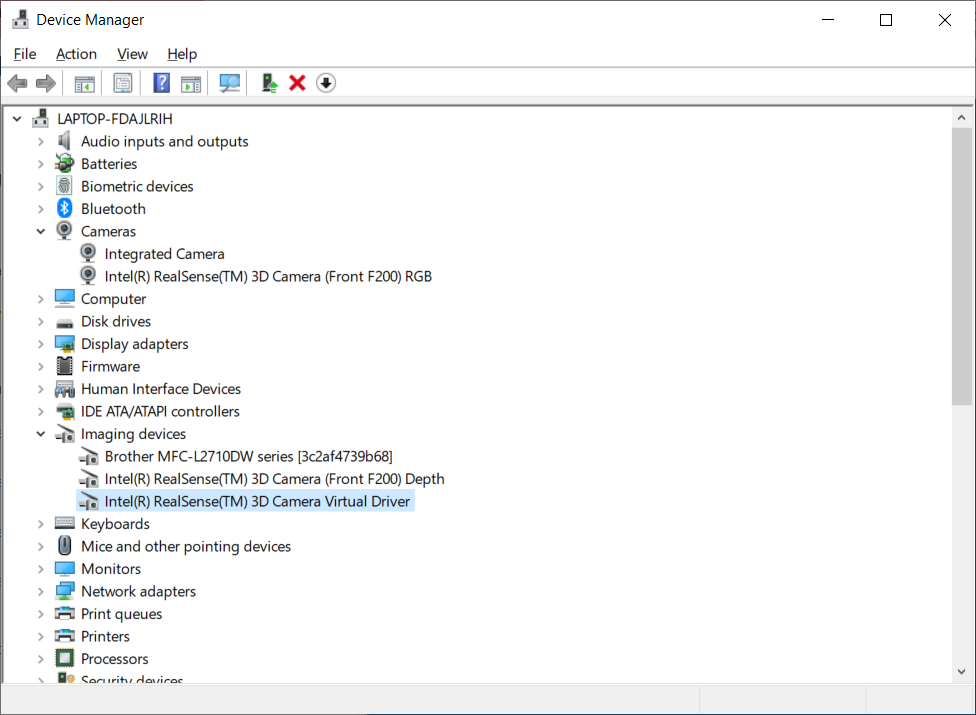
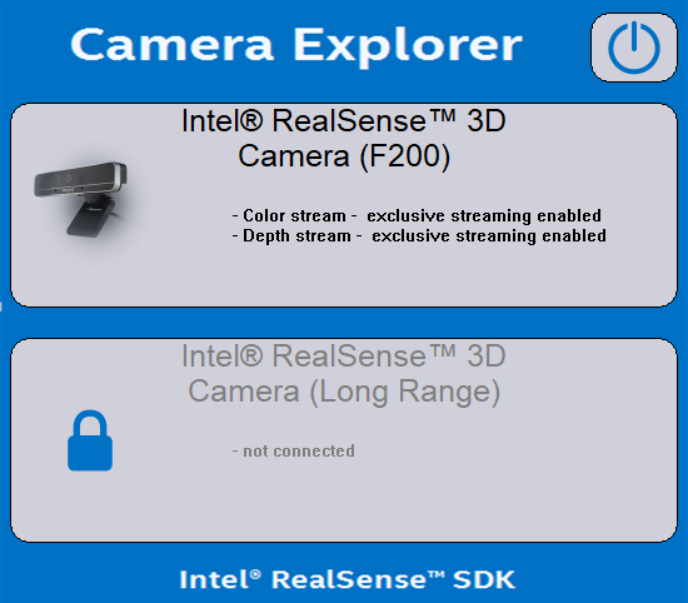
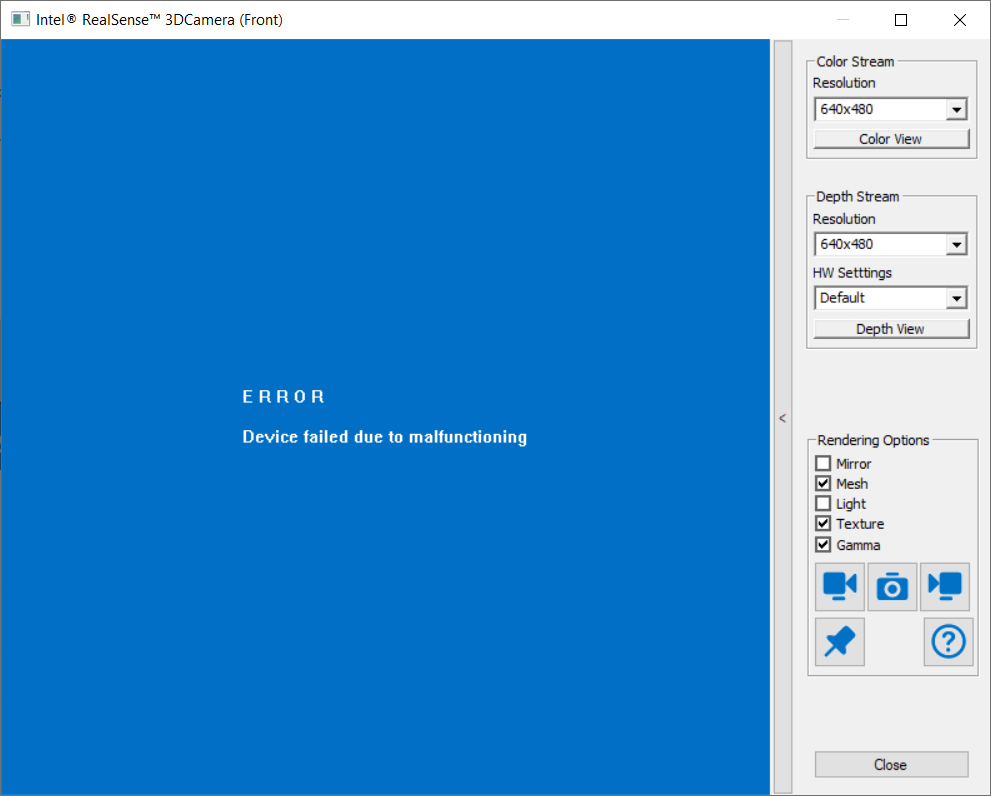
I've reinstalled everything from the start twice already, but nothing helps.
Can someone help?
-
Hi Yonatan Sy As a starting point in investigating your case, could you use the instructions in the link below please to check if the camera has permission enabled to be accessed by applications in the Windows 10 Privacy settings?
https://github.com/IntelRealSense/librealsense/issues/3381#issuecomment-503424789
-
I recall a similar case in recent months where an F200 camera could not be detected in the Camera Explorer test application but worked with the R2 SDK's example programs. This may be because the R2 SDK ceased being updated some years ago and could become increasingly incompatible with modern versions of Windows 10 as more time passes since the camera's launch in 2014.
The R2 SDK should have installed a folder on the Windows desktop called Intel RealSense SDK Gold. Inside this folder is a program called the Sample Browser that the SDK's example programs can be browsed through and launched from.
-
The R2 SDK expects an Intel Core processor that is 4th generation or newer. Your Lenovo has an 8th generation Intel Core, so a processor incompatibility is not likely to be the cause of the problem.
That generation of RealSense cameras requires a USB 3 connection as they do not work with USB 2. Your computer's USB ports are listed as being USB 3.1 on its specification, so that should not be the cause either.
The behaviour that you describe with the green light suggests that it may be a USB power related issue: the camera is being supplied with enough power to be detected by the computer but as it is activated by a program then its power demands rise and it disconnects if the USB port cannot meet its power requirements.
Is your F200 connected to a USB hub or connected directly to the computer, please?
-
If you do not have a mains electricity powered USB 3 hub to attach the camera to but you do have a device that can charge its battery on a USB cable (like a tablet), a power workaround method that has worked for me in the past with cameras from that generation with power issues has been:
1. Plug the USB chargable device into the computer first so it begins charging.
2. Then attach the camera and start a program that activates it.
Doing so will provide evidence of whether it is a power related issue if it works whilst the device is charging but does not work when a charging device is not attached.
-
i installed the F200 camera and the R2 SDK on a Lenovo ThinkPad laptop. The installation was successful and the Camera Explorer and sample programs were able to work.
I then tested whether it may be a USB problem by slightly pulling out the camera's connector from the USB port (not unplugging it all the way). Doing so can make a computer believe that a USB 2 device is connected. Using this method caused the Camera Explorer to display the Device failed due to malfunctioning error that you experienced. The only way to reset it was to push the connector all the way back in and close and relaunch the Camera Explorer.
Could you try inserting the camera into the USB 3 port on your computer with a quick, firm motion (not a slow insertion) and see whether it makes a difference please?
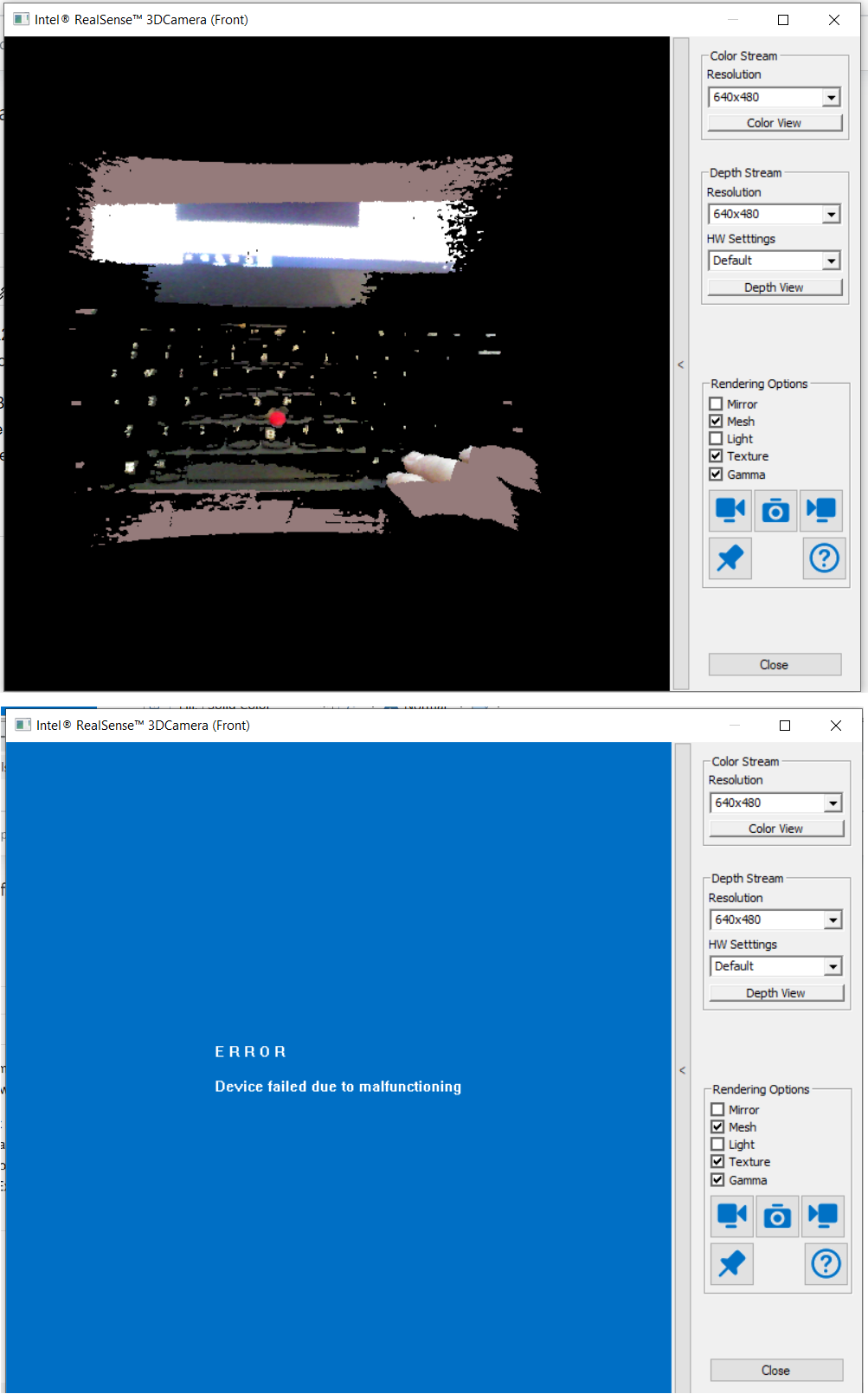
-
I researched your case carefully. The link below has a good article about determining whether a device is operating at the correct USB speed for the port that it is attached to.
However, I ran further tests with the Camera Explorer program using the partial removal technique to make Windows think a USB 2 device is attached. Camera Explorer actively monitors the USB status and displays the details for the F200 camera if it is detected as USB 3, and shows the camera as not connected if detected as USB 2.
This leads me to believe that the camera is likely correctly being detected as USB 3 on your computer but it is disconnecting immediately upon activation as the camera's power demands increase during stream activation.
-
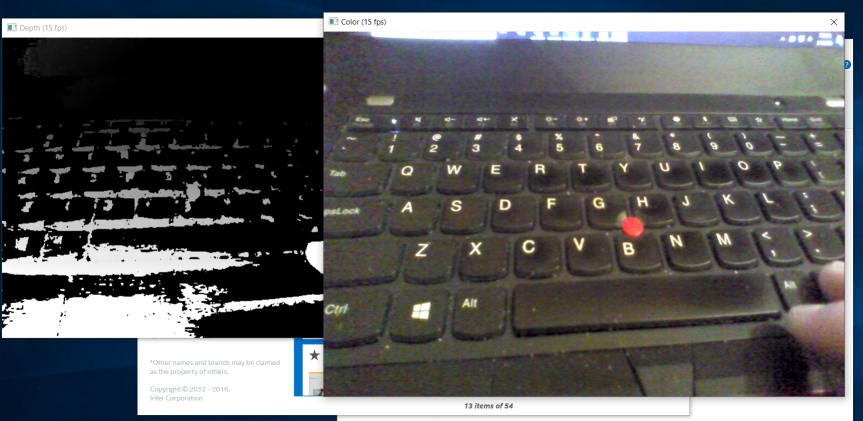
Next, let's test if the problem is with starting any stream or with a particular stream. We can do this by selecting the Common Samples tab of the Sample Browser and locating a program called Camera Viewer (C++) from the program list in this section of the Browser.
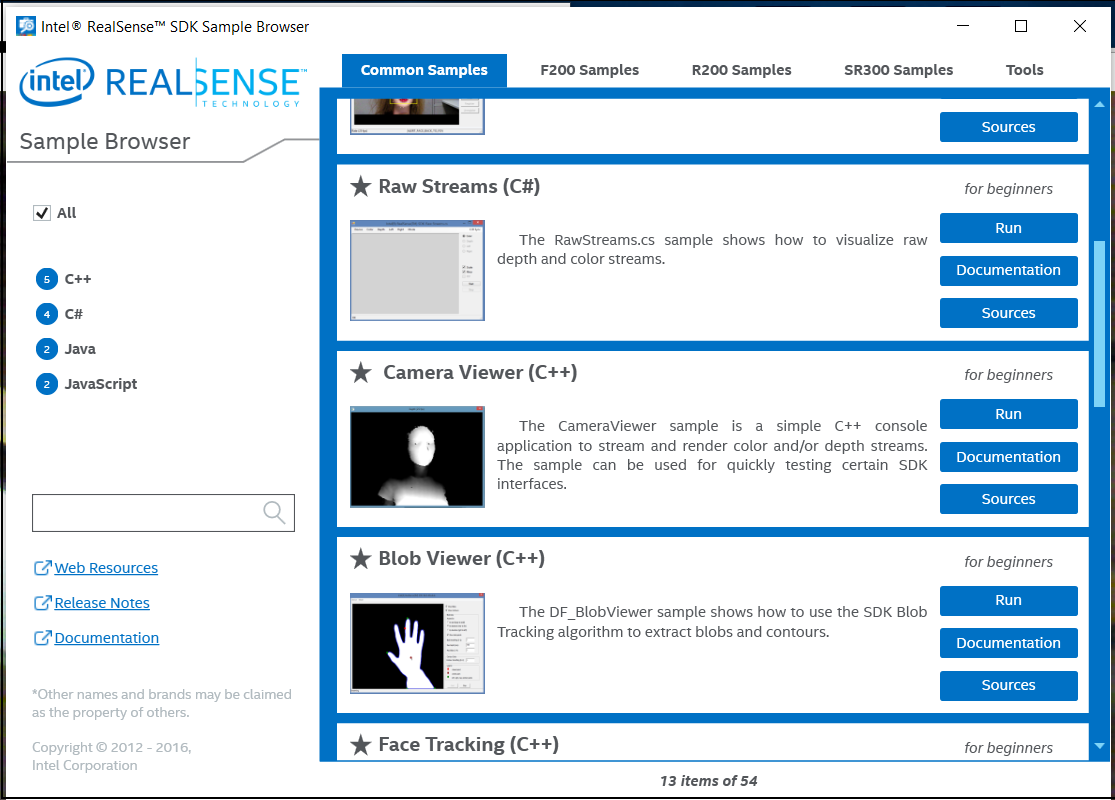
This program generates two separate windows for color and depth that can be changed between and dragged around with the mouse. If the color window streams successfully but the depth window does not, this would provide evidence that it is an issue related solely to the depth stream.
-
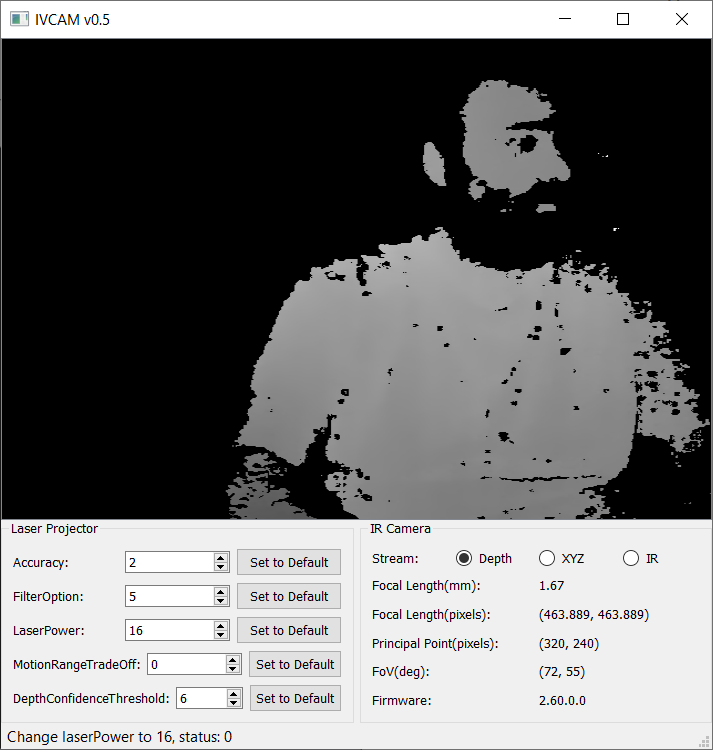
Given that it is probably still a power related issue, it would be useful to be able to adjust the laser power. In SR300 cases where disconnection on activation occurs (SR300 is the F200's successor and very similar hardware), reducing the Laser Power can enable a camera to start.
A RealSense user published a utility for the F200 in 2015 called IVCAM that enables modification of the laser parameters.
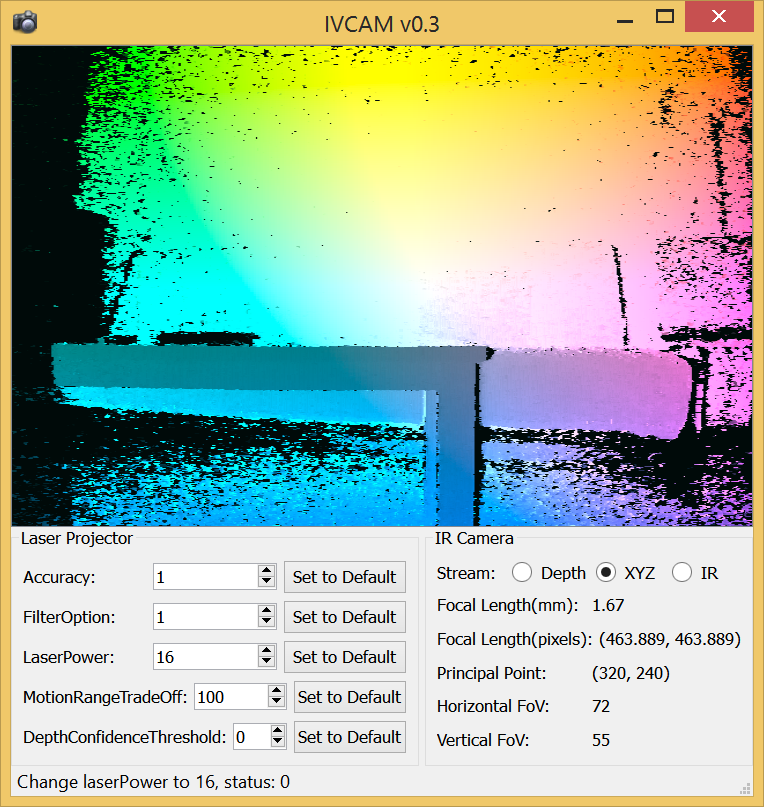
IVCAM can be downloaded as a zip file from the link below, which still functions:
http://www.samontab.com/web/files/ivcam.zip
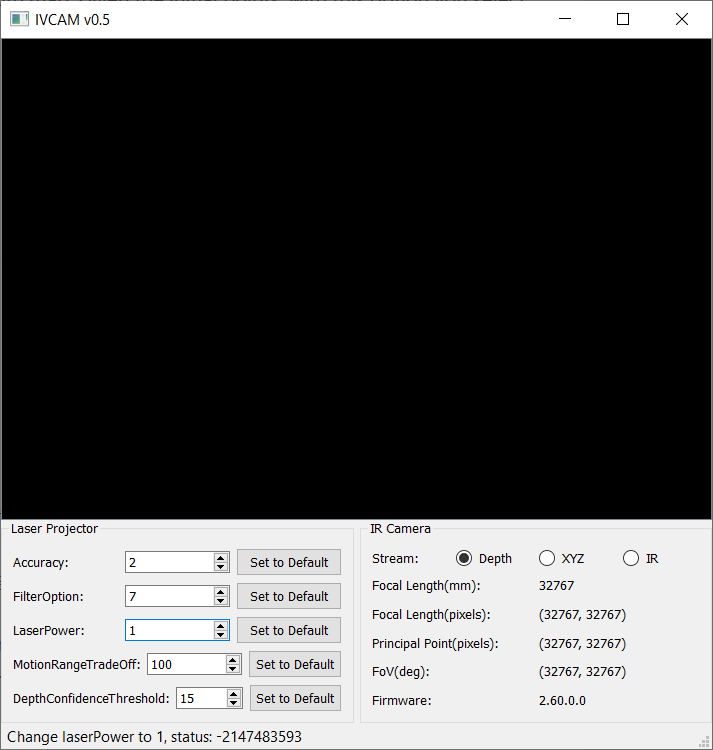
If the IVCAM utility runs on your computer, please try setting Laser Power to a minimum value of '1'. If the camera starts, progressively increase the Laser Power value until the disconnection behavior occurs again.
If it does disconnect beyond a certain Laser Power level, this would add weight to the evidence of it being related to a USB power issue.
-
First, MartyX Grover, thank you very much for your support. After the camera explorer failed, I started going through the other samples, and after I saw them run, I gave camera explorer another run, and now it runs. Now, although I'm happy it works, I still can't put my finger on the reason it failed or the reason it started to work perfectly.
-
Great news Yonatan Sy that you made significant progress!
Please sign in to leave a comment.
Comments
22 comments