D345i RGB can not be found
Camera : D435i
Firmware : 05.12.08.200
OS :Lunux Ubuntu 18.04 and Windows 10
SDK version : 2.0
USB type where the camera is plugged in : 3.2
I bought a realsense D435i about a week ago and plugged it in yesterday for the first time. When running realsense viewer the RGB camera is never picked up on both linux and windows. When trying to program using the RGB sensor it gets an error right after trying to configure for RGB sensor. The realsense viewer also thinks the camera is a D430i instead of D435i. I saw something online saying the RGB camera may be dethatched internally. What should I do next?
-
Hi Jrrizek Whilst a detached RGB cable in the D435i may cause the camera's firmware driver to detect the camera as D430i, it is extremely rare. My memory of previous cases of this problem is that a downgrade and then re-upgrade of the firmware usually corrects the problem.
STEP ONE
Visit the firmware file download page and download the firmware file for the previous version before your currently installed one. This older version is Signed_Image_UVC_5_12_7_100.bin
https://dev.intelrealsense.com/docs/firmware-releases
STEP TWO
In the RealSense Viewer program, go to the More option at the top of the Viewer's options side-panel and select the Update Firmware menu option. Select the firmware file that you downloaded.
STEP THREE
Once the firmware 5.12.7.100 has successfully installed, check whether RGB now works with this firmware version.
STEP FOUR
If you still want to use the latest firmware version, go back to More and select the option Install Recommended Firmware to re-upgrade to 5.12.8.200
If the method does not work the first time when you try it, please return here and do not repeat the downgrade-upgrade process. Thanks!
-
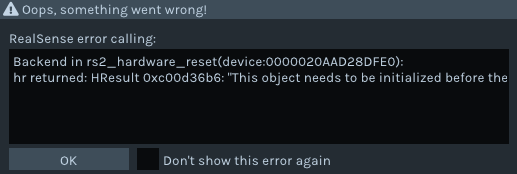
Yes it is okay to click on OK as it is just a notification message.
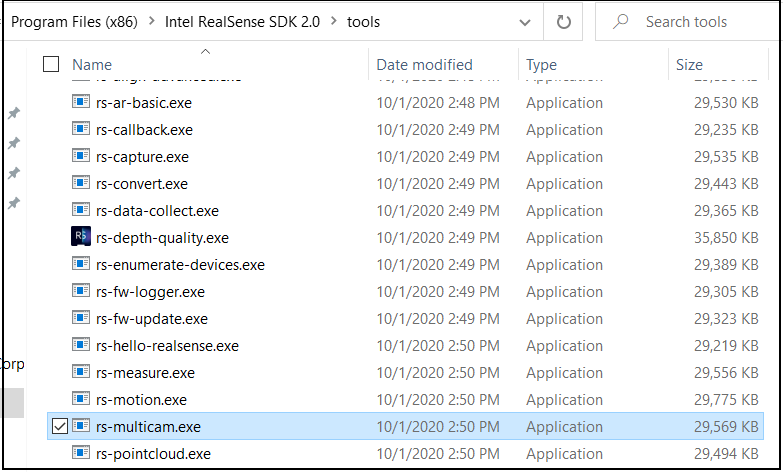
The next step would be to test whether applications other than the RealSense Viewer can detect the RGB. On Windows, please right-click on the launch icon for the Viewer on the Windows desktop and select the Open file location menu option. This will open the SDK folder where pre-built versions of the RealSense tools and examples are located.
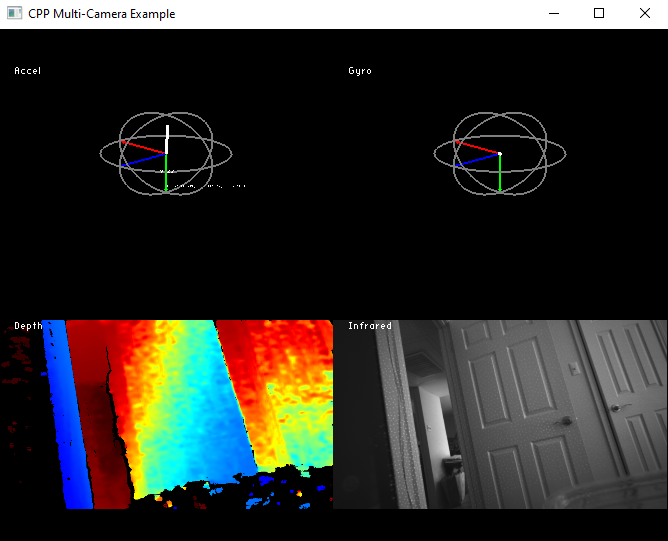
Please double-leftclick on a program file called rs-multicam.exe. This should launch a window containing a depth, motion-module and RGB panel from your D435i. If the RGB module is streaming then this should indicate that your RGB sensor is functional.
-
Okay, thank you. The panels look like what I would expect for a D430i.
I will seek input from another member of the RealSense support team. Thanks so much for your patience.
@... Could you provide advice please about this case of a D435i being detected as a D430i with no RGB available, please?
-
Hi Jrrizek,
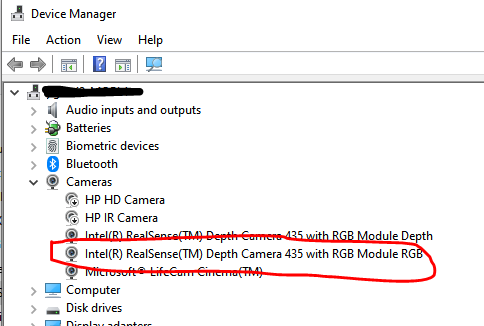
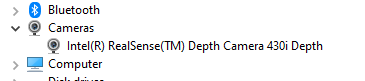
Check the Device Manager. Under Cameras you should find the D435 RGB module similar to the picture below. If the RGB node is not present, then your camera is most likely faulty and needs to be returned or exchanged at your point of purchase.
-
Hi Jrrizek,
If you purchased it from the Intel RealSense Store, please sign in to your account on http://www.intelrealsense.com and go to My Account -> My Orders -> Return or Replace Items or open a ticket here.
Regards,
Jesus G.
Intel Customer Support
Please sign in to leave a comment.
Comments
12 comments