how to render depth data like realsenser view
Dear all:
I find the RealRenser View render my bag file better than example.
RealSenser View Result:
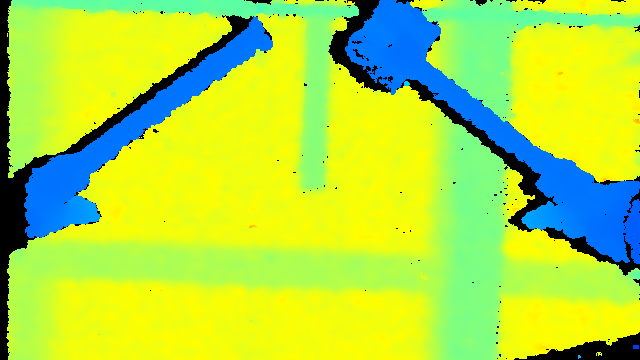
My output refer from example:

from realview it is clear split background with target.
I would like to know RealRenser logical for render the depth data.
thanks for you kindly comments.
Best Regards
Fred cao
-
The RealSense Viewer has a range of post-processing filters enabled by default that improve the image quality. These can be found in the Post-Processing section of the options at the side of the RealSense Viewer window.
When you create your own application though, you have to program in the post-processing filters. So there can be a difference between the output of the Viewer and your own application.
The link below has a C++ tutorial for adding post-processing filters.
https://github.com/IntelRealSense/librealsense/tree/master/examples/post-processing
And here is a tutorial for Python.
https://github.com/IntelRealSense/librealsense/blob/jupyter/notebooks/depth_filters.ipynb
-
Hello MartyG:
Thanks for your remind.
It is useful for me.
After Study RealSense Viewer. I get the key point.
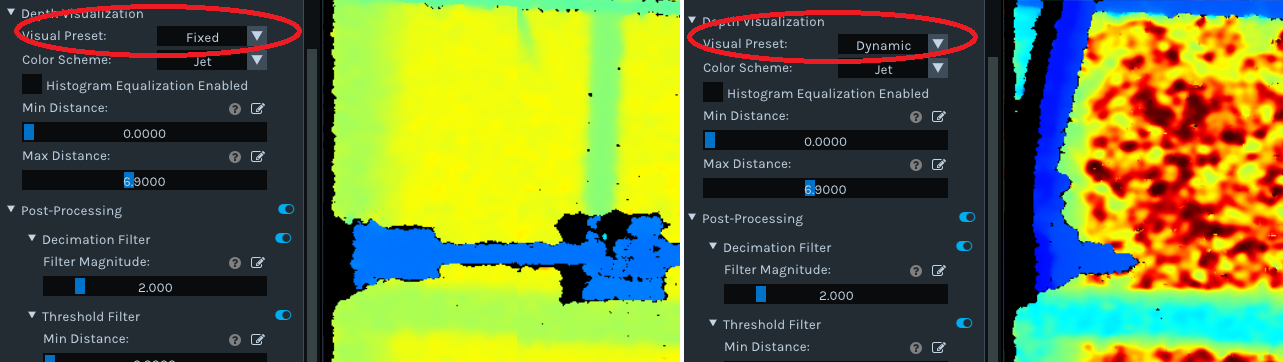
It is "Visual Preset:" setting. from the RealSense Viewer It is clear, I put compare picture under.
I would like to use this feature in my app, Would you kindly tell me which API or function responsible this feature.
Best Regards
Fred
-
Unfortunately the C++ code for setting this particular option does not seem to be simple. It is covered by lines 172 to 210 of the SDK file colorizer.cpp
https://github.com/IntelRealSense/librealsense/blob/master/src/proc/colorizer.cpp#L172
-
Hi MartyG:
I read the sourc code, I fould it is new version at github compare with install location.
If I try to integrate this feature into old version It will take me more time.
I try to directly use the new version.
Unfortunately, after download the new version. there is no *.sln VS project files for samples, only makefiles.
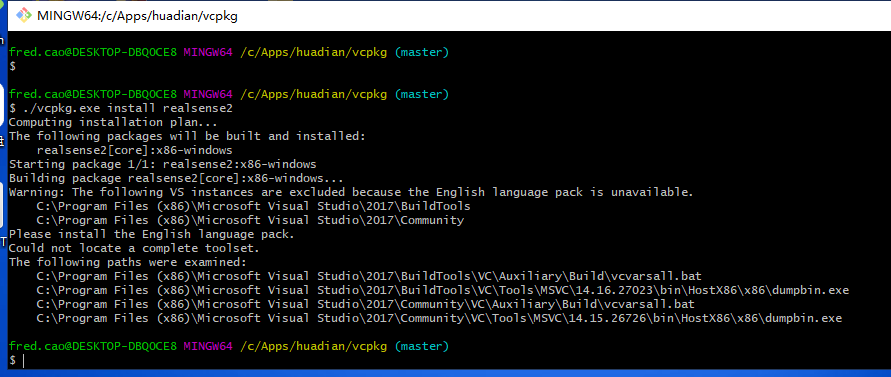
and read the readme.md file, I try to use vcpkg.exe, it looks not working.
Could you kindly tell me how the build new realsenser version from github(include lib,examples).
Best Regards
Fred
-
If you would prefer to build Librealsense using vcpkg, instructions can be found here:
-
The tutorial for the rs-capture example program explains how the colorizer can be applied to a image.
https://github.com/IntelRealSense/librealsense/tree/master/examples/capture
-
Hi MartyG:
Thanks for your hint. It is helpful for me.
Now Find find 2 colorizer, one is in rs2 namespace. another is in librealsense
To support Dynamic,Fixed,Near,Far feature, it need implment librealsense colorizer.
But strange I could not find this colorizer used in RealSenser Viewer.
Would you kindly tell me if my understand correct? and where could I find librealsense colorizer used in viewer?
Best Regards
Fred
-
I hope that the colorizer code in the link below will solve your problem with these settings:
https://github.com/IntelRealSense/librealsense/issues/5371
Please sign in to leave a comment.
Comments
11 comments