How to get pure infrared image from Realsense D415?
HI All,
I'm new to using this device.
I'm trying to look at some Laser footprint on the floor using D415 camera.
But i can't figure out how can i just get only the IR image?.
Can anyone please suggest?.
Thanks in Advance.
-Sai Poosa
-
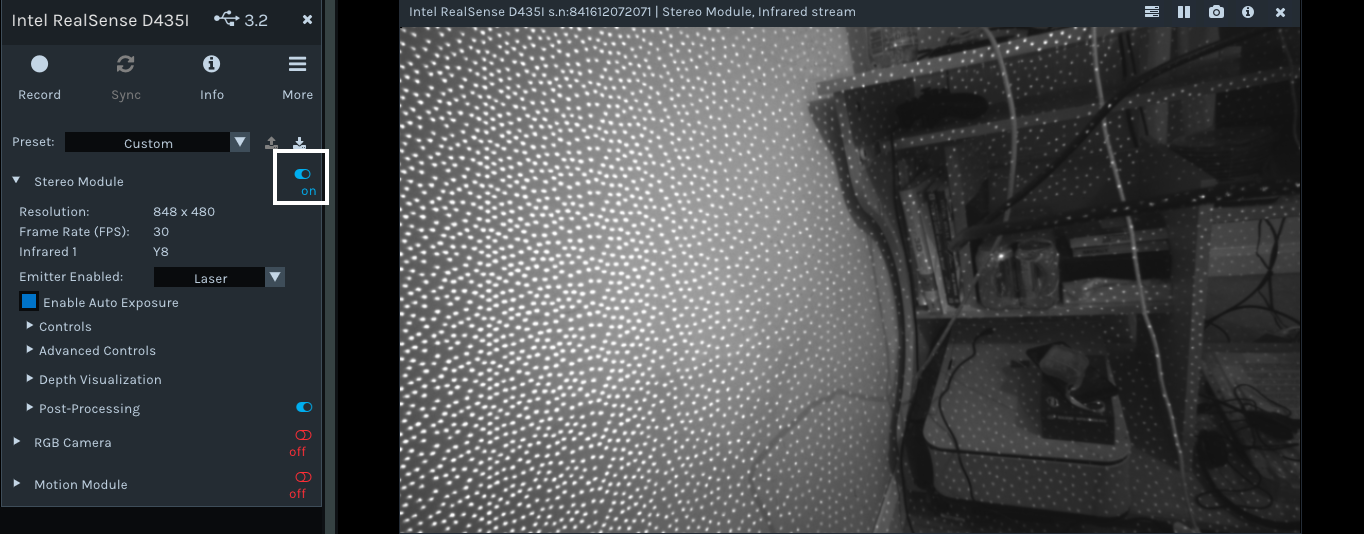
If you are using the RealSense Viewer software that is installed on the computer when the RealSense SDK is installed, then you can set the streams that you want to be active by setting the box beside them to blue (on), and setting the streams that you do not want to a black box (off). You toggle them between black and blue by left-clicking on the box.
So to only stream the basic "Infrared 1" IR mode, 'Depth' and 'Infrared 2' should have their boxes set to black, and 'Infrared 1' should be set to blue, like in the image below.

Once the settings have been made, start the streaming by left-clicking on the red icon beside 'Stereo Module' to turn it to blue. Now only the "Infrared 1" stream should be displayed in larger size than if it was sharing the screen space with another stream.
-
Thanks a lot. It worked.
I'm trying to see Lasers spot size on different material.
Do you have a recommendation on improving the sensitivity?.
Like position of the camera relative to the area of interest, calibration, other settings which might help IR reception in the camera.
Thanks again,
Sai Poosa
-
The visibility of the projected dot pattern is tied to the value of the 'Laser Power' setting in the "Controls" section of the Viewer's options side-panel. The pattern becomes more visible when Laser Power is increased and becomes less visible when Laser Power is reduced.
When Laser Power = 0, the projector turns off, and turns on again when Laser Power is increased above zero.
The built-in laser based projector in the camera can produce a type of noise on the image called Laser Speckle (which may increase as Laser Power is increased). If you use an external LED dot projector instead of the camera's laser projector then noise on the image should be reduced.
Intel have a tuning guide for the 400 Series cameras that provides a lot of excellent information about improving the camera image.
The user guide for Dynamic Calibration of the camera is available here:
There is also a new calibration mode in the RealSense Viewer called 'On-Chip Calibration' that is not as advanced as the Dynamic Calibrator software but provides a quick and easy way to reduce depth image noise.
https://github.com/IntelRealSense/librealsense/issues/5838
Regarding camera positioning, the camera should be at least 20 cm from the observed object. If the camera gets closer to the object than this then the left and right IR sensors that generate the depth image can get confused.
Please sign in to leave a comment.
Comments
3 comments