D435 stopped working after firmware update
I recently bought a D435. It was working fine. Today I launched the Depth Quality Tool from Intel.
There was a message saying a firmware update was required. I clicked on install the update.
After sitting there for about an hour not doing anything, I closed and re-opened the depth quality tool. It now says it doesn't detect a camera. I unplugged / plugged it in several times, no change. How do I update the firmware?
I have Windows 10.
Thank you for your help.
-
In version 2.24.0 of the RealSense SDK 2.0, Intel introduced a new cross-platform firmware update system that can be launched from within programs such as the RealSense Viewer. It can also be accessed with a tool called rs-firmware-update. If you have downloaded and installed the full SDK on Windows, a pre-built executable version of the tool can be found at this SDK folder location:
C: > Program Files (x86) > RealSense SDK 2.0 > Tools > rs-fw-update
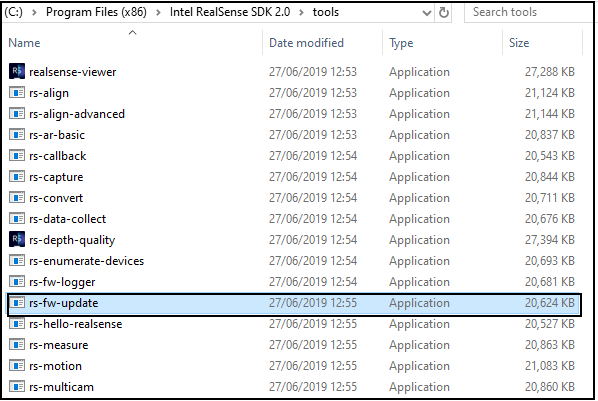
rs-firmware-update is a 'text console' based tool that has an option to do a recovery on a failed firmware install by using the configuration term -r as shown in the documentation for the tool in the link below.
https://dev.intelrealsense.com/docs/firmware-update-tool
For example, if you are trying to install firmware version 5.11.6.250 and have downloaded the firmware file, you can launch a recovery action to fix the camera and install this firmware on it by copy and pasting the command below into the text console window:
rs-fw-update -r -f Signed_Image_UVC_5_11_6_250.bin
-
If your camera is in recovery mode due to a failed firmware update, please check if the camera can be detected by the RealSense Viewer program. If it can, the camera name may be shown as 'Intel RealSense D4xx Recovery'.
If the Viewer can detect it, go to the 'More' icon at the top of the options side panel (the icon that looks like a pile of plates) and select from its menu the option to update to recommended firmware. You do not need to download a firmware file to use this as the update is handled automatically.
-
Glad to see your response.
My camera d435i shows up in Device Manager of Windows, but Intel RealSense Viewer will crash once d435i is connected. If I kept trying to open the RealSense Viewer program, it can be launched by chance, but the camera name is shown as 'Intel RealSense D435i', I am still not able to update its firmware in the RealSense Viewer program.
Appreciate your kind and timely response.
-
If the camera shows as 'Intel RealSense D435i' (the correct name), this suggests that the firmware is okay.
Crash or freezing issues with the Viewer may be caused by the OpenGL graphics drivers which the Viewer makes use of. Updating your PC's graphics drivers (which should update the OpenGL support along with it) should eliminate an OpenGL driver conflict as a possible cause if the Viewer is still malfunctioning afterward.
-
I checked the rs-fw-update tool and found that I also could not launch it from the SDK folder. I found though that it can be launched from the Command window using the steps below.
1. Go to the text box at the bottom of your Windows screen (next to the button where you shut down the PC) and enter 'command' into the text box to find the Command window shortcut.
2. A text terminal window will open. Enter the following directory change instruction to go to the SDK folder containing the rs-fw-update tool.
cd C:\Program Files (x86)\Intel RealSense SDK 2.0\tools
3. Enter the following command to launch the rs-fw-update program and list the available options:
rs-fw-update -h
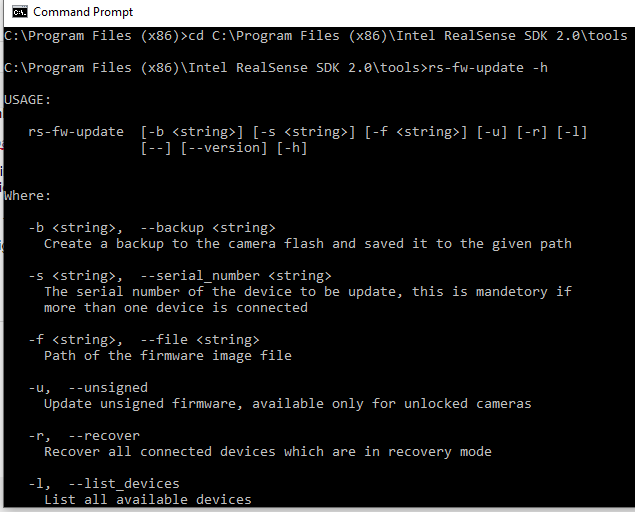
4. Run the recovery instruction, which is made up of 'rs-fw-update -r -f' and then the filename of the particular firmware file that you want the camera to install to recover itself.
You can download the firmware files from the link below, including the currently latest 5.11.15.0 version.
The example instruction below, taken from the rs-fw-update documentation, shows how the recovery instruction would be used to recover to firmware version 5.11.6.250:
rs-fw-update -r -f Signed_Image_UVC_5_11_6_250.bin
Change the signed_image file name to the name of whichever firmware file you have downloaded from the link above.
-
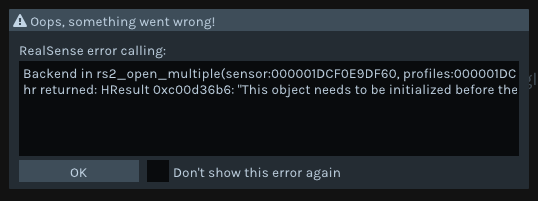
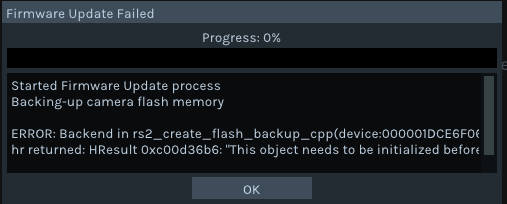
I could not find a solution for the error messages. I recommend posting a help request at the RealSense GitHub about those.
https://github.com/IntelRealSense/librealsense/issues
Before that though, I suggest putting the firmware file into the Tools folder where rs-fw-update is so you can run the installation instructions without having to specify a path. E.g:
rs-fw-update -r -f Signed_Image_UVC_5_11_15_0.bin

Please sign in to leave a comment.
Comments
12 comments