I’m Lost. Do I need coding skills In Order To Use my depth camera?
I purchased the real sense D455 depth camera and in order to create 3-D scans and to track motion for live visual body tracking effects. I have no idea how to code or what any of that means so far I haven’t even been able to do anything but plug in the camera because I’m not really sure where to go from here or how to set it up so that I can use the camera with another apps. Can somebody tell me if there’s some sort of course I should take in order to learn what is going on or how to use this thing? Or is there information out there somewhere that will step-by-step show me how to use this? Any help would be greatly appreciated thank you.
-
Hi Qcreative13 Welcome to the RealSense community! If you are new to RealSense technology then a good place to begin exploring is the official RealSense YouTube channel, which provides a wide range of videos for all skill levels from beginner to advanced.
https://www.youtube.com/c/IntelRealSense/videos
You can certainly achieve a lot with your RealSense camera without needing to do any programming, thanks to the powerful RealSense Viewer tool. This will enable you to generate 3D scans and export them in a file for use in other software such as 3D modelling packages.
As a next step, I recommend installing the RealSense SDK software (within which the RealSense Viewer tool is bundled). Are you using Windows 10 or Linux operating system on your computer, please?
-
If you are using Windows 10 then there is an easy method for installing the RealSense SDK software. This will also place launch icons on your Windows desktop for the RealSense Viewer and a tool called the Depth Quality Tool for evaluating the quality of the depth imge that you are receving from the camera.
STEP 1
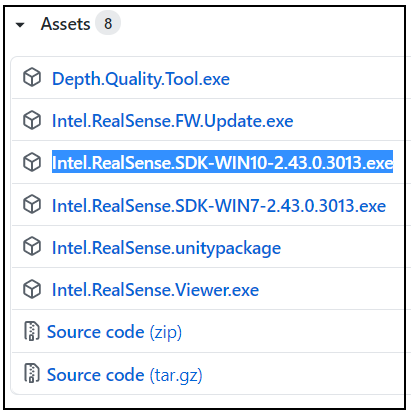
Visit the Releases page at the link below and scroll down until you find an Assets list. If it is shown as just the word Assets with a triangle beside it, left-click on the arrow to expand the list open.
https://github.com/IntelRealSense/librealsense/releases
In that list, left-click on the file link that starts with the name Intel.RealSense.SDK-Win10 to begin downloading it at the bottom of your browser window.
STEP 2
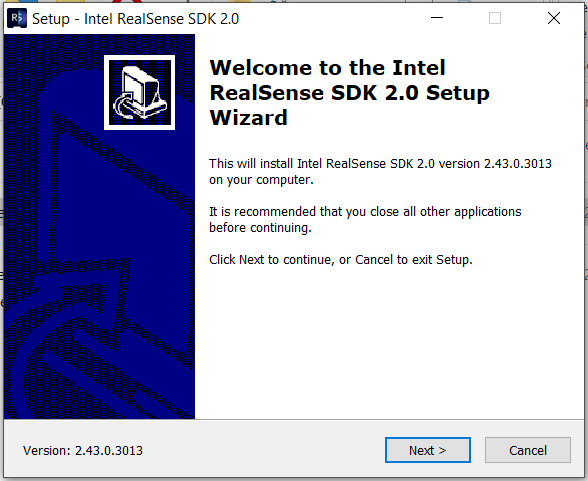
When the download is complete, left-click on the download at the bottom of your screen to launch the RealSense SDK installer program.
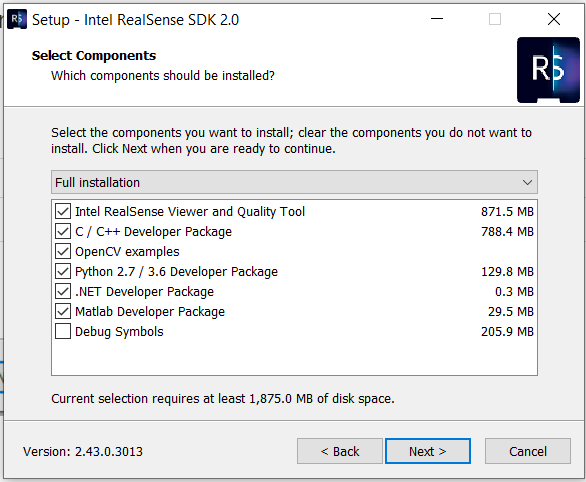
You do not need to change anything in the installer's settings. Just keep clicking Next until the short installation process is complete.

Please sign in to leave a comment.
Comments
5 comments